Plays your PC on several outputs together, lines them up with a delay per device, and hides the audio devices you never use from every Windows list. A tray app; no administrator rights needed.
pictures and all
How-to
Installing
Download the zip, open it, and double-click AudioMirror.exe. It asks "Install Audio Mirror on this PC?" and installs itself for your Windows account, no administrator rights needed. It then sits in the tray by the clock.
Playing on two outputs
Click the tray icon to open the window.
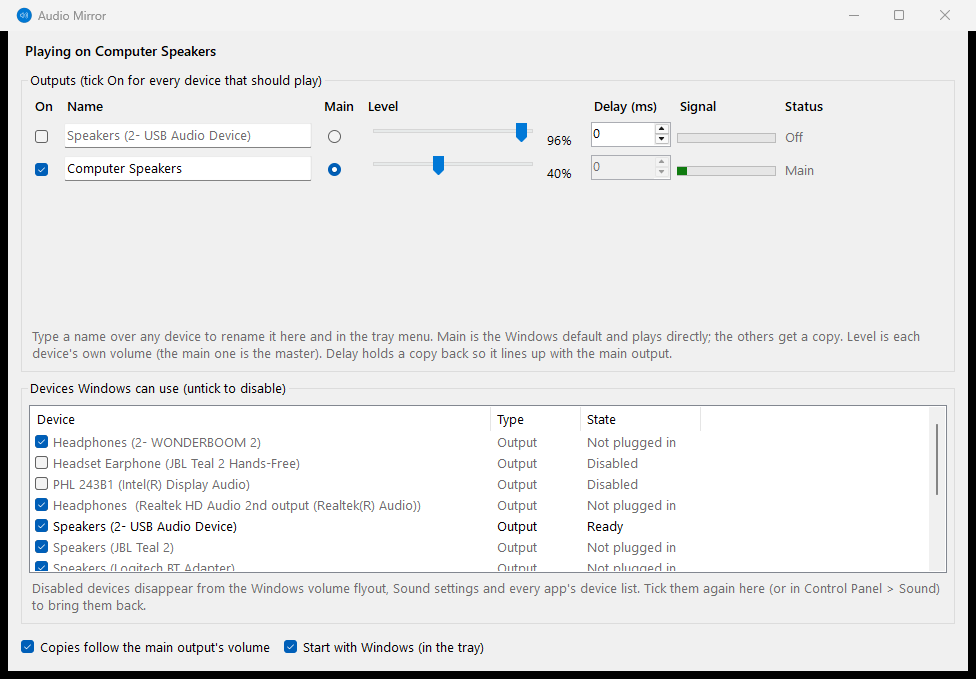
- Tick On for every output that should play. Mirroring starts by itself as soon as two are on.
- Main is the Windows default output and plays directly; the others get a copy. Choose the device with the most lag as main, usually a home theatre receiver or anything Bluetooth.
- Use Delay on the other outputs to line them up with the main one. Copies are always a little late, so start at about 50 ms and adjust by ear.
- Level is each device's own volume. With Copies follow the main output's volume ticked, the volume keys move everything together.
Type over a device's name to give it a nickname, such as "Home theatre". It's used in the app and the tray menu.
Hiding devices you never use
The lower list is every audio device Windows knows about. Untick one to disable it: it disappears from the volume flyout, Sound settings and every app's device list. Tick it again (here or in Control Panel › Sound) to bring it back.
Uninstalling
Settings › Apps › Audio Mirror › Uninstall. It offers to turn back on any devices it disabled, so nothing is left hidden.
What it does
What Audio Mirror does
Sound on several outputs at once
- Plays your PC's sound on every output you tick: a home theatre receiver and desk speakers, say. Mirroring starts by itself as soon as two are on.
- The main output is the Windows default and plays directly; the others get a copy of it.
- Delay per output lines the copies up with the main one. Level is each device's own volume, and the copies can follow the main output's volume so the volume keys move everything together.
- Nicknames for devices ("Home theatre", "Desk speakers"), shown in the app and its tray menu.
Tidying Windows' device lists
- Untick a device to disable it, the same as "Disable" in Control Panel › Sound, so it disappears from the volume flyout and every app's list. No administrator rights needed.
Installing
- Double-click the exe (even inside the zip) and it offers to install itself for your Windows account, with a Start menu entry, start with Windows (optional) and an entry in Settings › Apps.
- Uninstalling offers to turn back on any devices Audio Mirror disabled.
Known limitations
- Early release. Mirroring to a second device, the drift correction and the volume-follow option haven't been tried on a real second device yet. Please tell us how it goes, using the support form.
- Copies are always a little behind the main output (about 50–80 ms), so make the device with the most lag (often the receiver or Bluetooth) the main one and delay the others.
- Surround sound folds down to stereo on the copies, and a faint tick every few minutes is possible while the two devices' clocks are kept in step.
- Exclusive-mode or bitstreamed audio (Dolby/DTS passthrough to a receiver) can't be copied.
- Windows 11; not code-signed yet, so SmartScreen warns on first run.
newest first
Changelog
0.1.0 (04/10/2026)
- First release.
Support
Something not working, or an idea for it? Tell us here and a real person will write back.
Buy us a coffee
Audio Mirror is free and stays free. If it has saved you some time, a coffee is a lovely way to say so.