Set your wake time and bedtime. The screen is cool and bright through the day, then warms and dims through the evening as bedtime nears, on every monitor at once, and steps aside for photo and print work. Optional reminders to change focus, breathe, walk, drink water and wind down. Supports a healthy routine; it is not a medical device.
pictures and all
How-to
Installing
Windows: download the installer and run it. It installs for your Windows account and starts with Windows. Leave Allow full warmth at night ticked. Windows then asks once for administrator approval to switch on a display setting that lets screens go properly warm, and the installer asks you to restart at the end. Without it, Windows stops the screen at about the warmth of a cool white bulb.
Mac: download the zip for your Mac's chip, unzip it and drag Circadian Light into Applications. The first time only, macOS blocks apps that aren't from a registered developer. Open Terminal and run xattr -cr "/Applications/Circadian Light.app", then open it normally. It lives in the menu bar, not the Dock. Turn off Night Shift so the two don't stack.
Setting your day
When it first starts, Circadian Light opens its settings. Open them again at any time from the tray icon by the clock (Windows) or the menu bar (Mac).
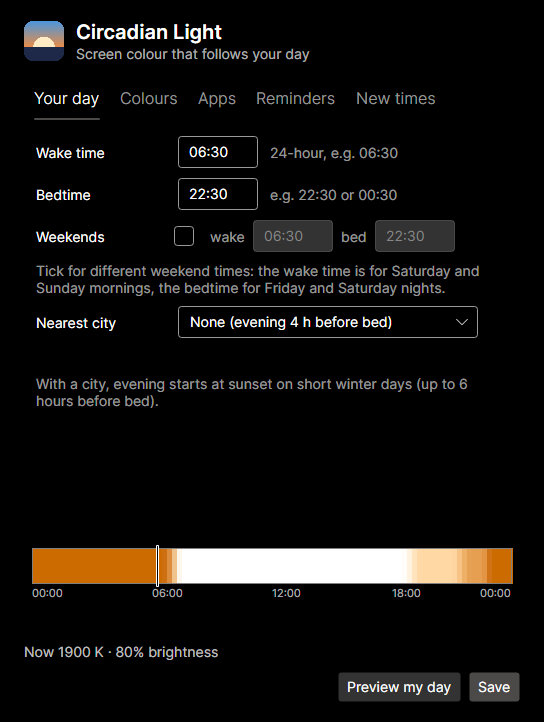
- Type your wake time and bedtime in 24-hour time, for example 06:30 and 22:30. A bedtime after midnight, such as 00:30, is fine.
- Different at weekends? Tick Weekends and set those times too. The weekend wake time is for Saturday and Sunday mornings, and the weekend bedtime for Friday and Saturday nights.
- Pick your nearest city. On short winter days the evening warm-up then starts at sunset, never more than six hours before bed. Not listed? Choose Custom coordinates and type your latitude and longitude (south and west are negative).
- The colour strip shows your whole day, with a marker at the current time. Click Preview my day to watch the day run across your screens in 24 seconds, then Save.
Choosing the colours
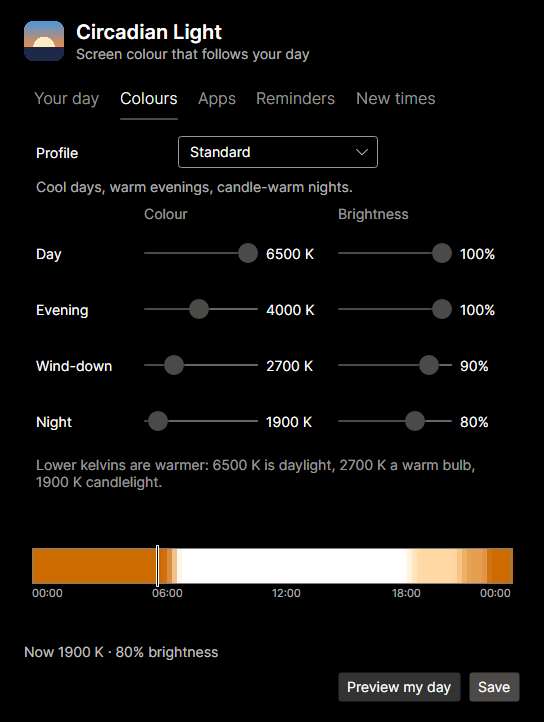
Start with a profile: Standard, Gentle (warm, but never very orange), Strong (as warm and dim as it goes) or Sensitive eyes (softer and dimmer all day). Move any slider to make your own. Lower kelvins are warmer: 6500 K is daylight, 2700 K a warm bulb and 1900 K candlelight.
Apps that need true colour
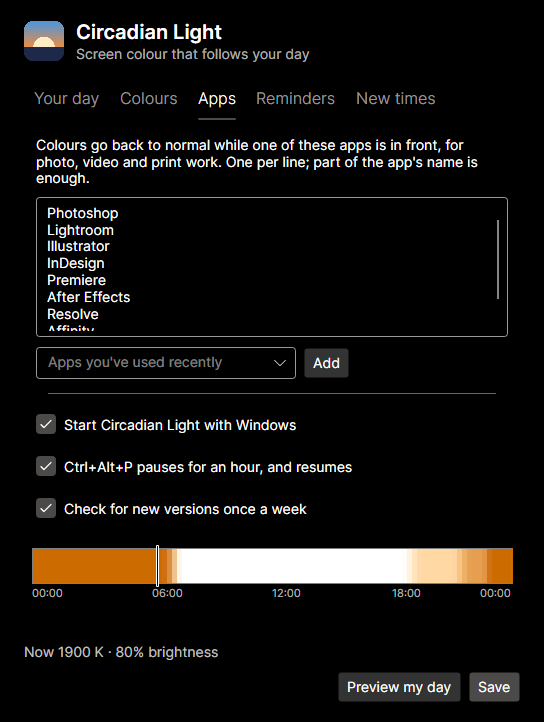
While one of these apps is in front, colours go back to normal, and they come back when you switch away. Add an app by typing part of its name on a new line, or pick it from Apps you've used recently and click Add.
For anything else, right-click the tray icon and choose Pause for 1 hour, or press Ctrl+Alt+P on Windows. Press it again, or choose Resume now, to come back early. For a film or a late deadline, Pause until morning keeps normal colours until your next wake time.
Shift work and travel
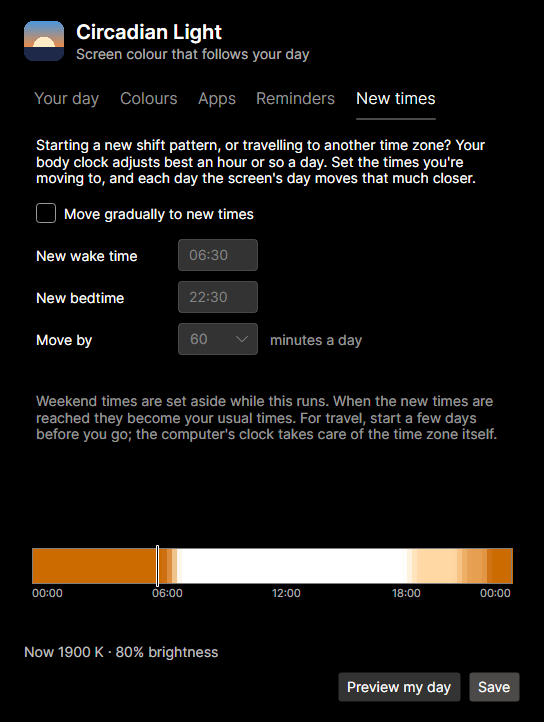
Your body clock adjusts best an hour or so a day. On the New times tab, tick Move gradually to new times, type the wake time and bedtime you're moving to, and choose how far to move each day (30, 60 or 90 minutes). The tab shows today's times and the day you'll arrive. When you get there, the new times become your usual ones. For travel, start a few days before you go; the computer's clock takes care of the time zone itself.
Healthy-habit reminders
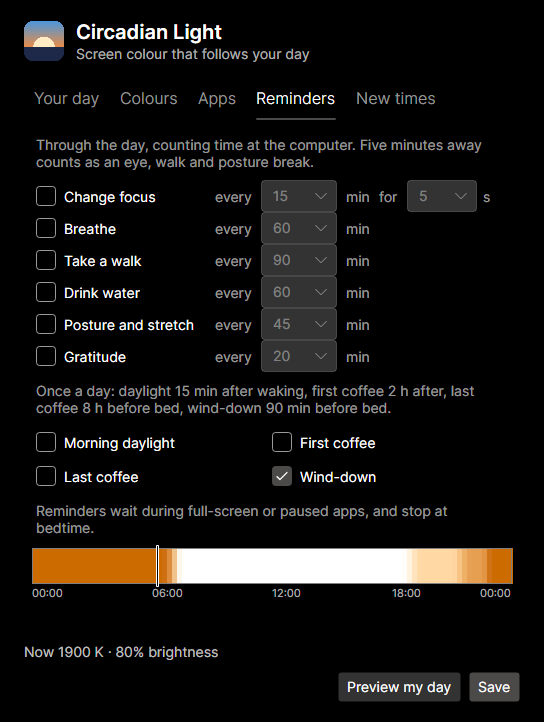
Tick the ones you want and choose how often. A small card appears in the corner and goes away by itself.
Through the day:
- Change focus: every 15 minutes or so, look at something far away for a few seconds. The card counts down and closes itself.
- Breathe: offers the breathing minute.
- Take a walk: every 90 minutes by default. To the kitchen and back counts.
- Drink water and Posture and stretch.
- Gratitude: a short prompt to think of something good, such as "Who helped you recently?".
Once a day:
- Morning daylight soon after waking: get outside for 10 minutes if you can.
- First coffee 2 hours after waking, and last coffee 8 hours before bed.
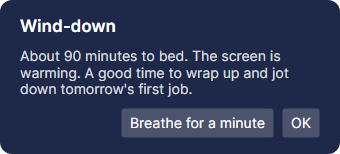
- Wind-down 90 minutes before bed: a suggestion to wrap up, with the breathing minute.
Reminders count time actually at the computer, so stepping away for five minutes counts as an eye, walk and posture break. They wait while a full-screen app (a video or a presentation) is in front, and stop at bedtime.
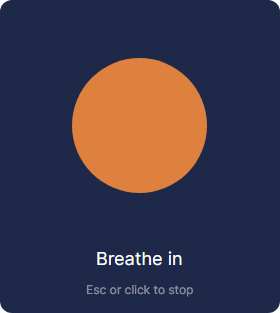
The breathing minute: the circle grows as you breathe in for 4 seconds and shrinks as you breathe out for 6. Start it from a reminder or the tray menu. Press Esc or click to stop.
New versions
Once a week Circadian Light asks this website for the newest version number. If there's a newer one, a card in the corner and the tray menu offer the download page. It sends nothing but the app's name and installs nothing by itself. Untick Check for new versions once a week on the Apps tab to turn it off.
If colours look stuck
Exiting from the tray menu puts normal colours back. If the screen is ever left tinted, start Circadian Light and exit it again.
Uninstalling
Windows: Settings › Apps › Circadian Light › Uninstall. It puts normal colours back, and asks for administrator approval to switch the full-warmth display setting back off, if it was the one that turned it on.
Mac: choose Quit from its menu, untick Start Circadian Light when I log in first if you ticked it, then drag the app to the Bin.
What it does
What Circadian Light does
Screen colour that follows your day
- Set your wake time and bedtime. The screen is cool and bright through the day, warms through the evening from four hours before bed, warms further for wind-down in the last 90 minutes, and is warmest and dimmest at night.
- Pick your nearest city and, on short winter days, evening starts at sunset instead (never more than six hours before bed). Sun times are worked out on your computer; nothing is looked up online.
- Profiles: Standard, Gentle, Strong and Sensitive eyes, or set the colour and brightness of each part of the day yourself.
- Different times at weekends if you like: a weekend wake time for Saturday and Sunday mornings and a weekend bedtime for Friday and Saturday nights.
- New times for shift work or travel: set the times you're moving to, and the day moves 30, 60 or 90 minutes closer each day until you're there.
- Changes fade in over 30–60 minutes, so you never see them happen. Works on every screen at once.
Out of the way when colour matters
- Colours go back to normal while a colour-critical app is in front: Photoshop, Lightroom, Illustrator, InDesign, Premiere, After Effects, DaVinci Resolve, Affinity and GIMP to start with, and any others you add.
- Pause for 1 hour or Pause until morning from the tray, or Ctrl+Alt+P on Windows.
- Exiting, crashing or uninstalling all put normal colours back.
Healthy-habit reminders
- Through the day, each at an interval you choose: change focus (a few seconds looking into the distance, every 15 minutes), breathe (a one-minute breathing exercise, in for 4 seconds and out for 6), take a walk (every 90 minutes), drink water, posture and stretch, and gratitude (a short prompt to think of something good, every 20 minutes).
- Once a day, tied to your times: morning daylight soon after waking, first coffee 2 hours after waking, last coffee 8 hours before bed, and wind-down 90 minutes before bed.
- Only wind-down is on to begin with; tick the rest on the Reminders tab.
- Reminders count time actually at the computer (five minutes away counts as an eye, walk and posture break), wait while a full-screen app is in front, and stop at bedtime.
Settings you can see
- A 24-hour colour strip shows what your screen will look like at every hour.
- Preview my day runs the whole day across your screens in 24 seconds.
- The tray icon is a disc in the screen's current colour, grey when paused.
- Warns if Windows Night Light is on too, since the two stack.
- Checks once a week whether a newer version is out and offers the download page. It sends nothing but the app's name, installs nothing by itself, and can be turned off.
Installing
- Windows: a per-user installer that starts with Windows. Allow full warmth (ticked by default) switches on a Windows display setting that lets screens go warmer than about 3300 K. It asks for administrator approval once and needs a restart. Uninstalling puts that setting back exactly as it was before.
- Mac: a zip with the app for Apple Silicon or Intel. It lives in the menu bar and can start when you log in.
Known limitations
- Early release. Windows: tested on one laptop with two external monitors. Mac: not yet tried on a real Mac. Please tell us how it goes, using the support form.
- Without Allow full warmth, Windows limits how warm the screen can get. The tray says when this is happening.
- Screens in HDR mode ignore the colour change.
- Mac: Night Shift stacks with Circadian Light (turn it off), there's no pause shortcut key, and reminders still appear over full-screen apps.
- Not code-signed yet: Windows SmartScreen warns on first run, and the Mac app needs the one-off step in its install notes.
newest first
Changelog
0.4.0 (27/10/2026)
- Mac version (menu bar app, Apple Silicon and Intel), untested on a real Mac.
- Healthy-habit reminders: change focus, breathe, walk, water, posture, gratitude, morning daylight, first and last coffee, and wind-down with a breathing minute.
- Nearest city: evening starts at sunset on short days.
- Weekend times, and New times for moving gradually to a new shift pattern or time zone.
- Pause until morning, and a weekly check for new versions.
- Profiles, and colour and brightness for each part of the day.
- Pauses for colour-critical apps; Ctrl+Alt+P pause shortcut on Windows.
- Warns if Windows Night Light is on as well.
- Settings now in tabs, with "Start with Windows" (or "when I log in") there too.
0.1.0 (27/10/2026)
- First release.
Support
Something not working, or an idea for it? Tell us here and a real person will write back.
Buy us a coffee
Circadian Light is free and stays free. If it has saved you some time, a coffee is a lovely way to say so.