At the office, P: is the server. On the road, P: is the folder your sync app keeps in step. Drive Switcher notices where you are and moves the letters, so shortcuts, recent files and linked drawings keep working. It never touches the files themselves.
pictures and all
How-to
The idea
Your office server gives you drives like P: for projects. Away from the office, your sync app keeps a copy of those folders on your laptop. Drive Switcher points P: at whichever one is available, so every shortcut, recent file and linked drawing keeps working wherever you are.
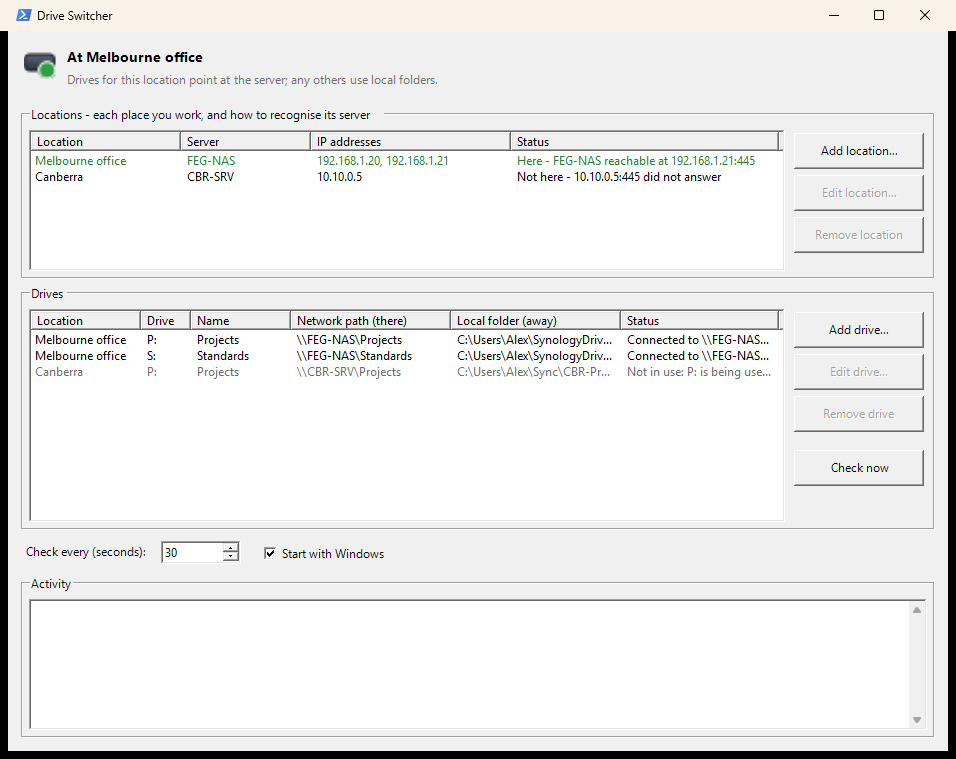
The window shows where you are at the top, your locations, and your drives with what each letter is pointing at right now. Closing the window leaves it running in the tray.
1. Add a location
Click Add location for each place you work.
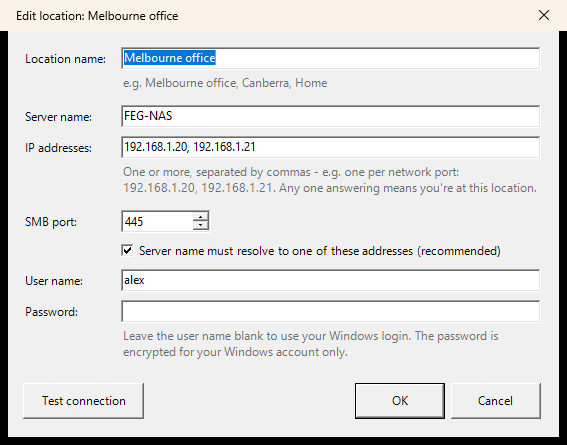
- Server name and IP addresses: enter every address the server has, e.g. one per network port:
192.168.1.20, 192.168.1.21. You're "at" the location when any of them answers. - Leave "Server name must resolve to one of these addresses" ticked. It stops a different network that happens to use the same address from fooling it.
- User name and password: that server's login. Leave them blank to use your Windows login.
- Test connection shows what Drive Switcher would decide right now.
2. Add your drives
Click Add drive, pick its location and a letter, then give the network path at that location and the local folder your sync app keeps for that share.
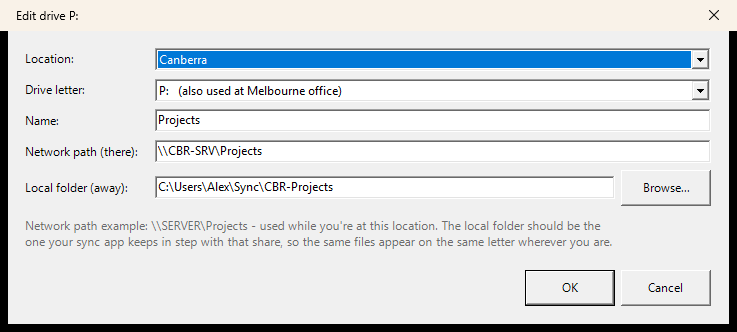
That's it. Drive Switcher checks by itself and switches the letters as you come and go.
Good to know
- The tray light is green at a location, blue away and grey before anything is set up. Right-click it for Check now.
- Two locations can use the same letter: the one you're at gets it, and the other drive shows "Not in use".
- Save and close files before you unplug and leave, because a program holding a file on
P:loses it when the letter switches. - Settings are in
%APPDATA%\DriveSwitcher, along with a log of everything it did (also shown in the window's Activity panel).
What it does
What Drive Switcher does
Drive letters that work everywhere
- At each place you work, your drive letters map to that location's server, e.g.
P:to\\SERVER\Projects. - Away from it, the same letters point at local folders that your sync app (Synology Drive, Nextcloud, Resilio and so on) keeps in step with the server. Drive Switcher never syncs or touches files: it only moves the letters.
- Several locations, each with its own server, login and drives. A server with several network ports is recognised on any of its addresses.
- "Server name must resolve to one of these addresses" stops another network that happens to use the same address (a café, a client's office) from passing as your office.
- When two locations use the same letter, the one you're at gets it.
Behaviour
- Checks on start, every few seconds you choose, and whenever the network changes, the PC wakes or the screen is unlocked. A single missed check doesn't switch you away: it checks again 10 seconds later first.
- Network drives are mapped so Windows doesn't bring back a dead drive with a red X when you're away.
- Real disks, USB sticks and DVD drives are never touched.
- Passwords are encrypted with Windows, so only your Windows account can read them.
- Tray icon with a status light: green at a location, blue away, grey not set up.
Installing
- Installs for your Windows account only; no administrator rights needed. Starts with Windows (optional) and uninstalls from Settings › Apps, asking whether to free the drive letters and keep your settings.
- Silent install for IT:
DriveSwitcher-Setup-x.y.z.exe /VERYSILENT.
Known limitations
- Not code-signed yet, so Windows SmartScreen warns on first install.
- Files open on a drive when you leave a location lose their connection when the letter switches. Save and close first where you can.
- If something is already connected to a server under a different login, Drive Switcher disconnects it to use the login you gave (Windows allows one login per server). Open files on those connections are closed.
newest first
Changelog
1.1.0 (03/10/2026)
Added
- Several locations, each with its own server, login and drives, checked independently.
- Settings from 1.0 move into a location called "Home" the first time 1.1 starts. (1.0 can't read the new settings, so don't go back to it afterwards.)
1.0.0 (02/10/2026)
- First release: one server, its drives mapped at home and pointed at local folders away.
Support
Something not working, or an idea for it? Tell us here and a real person will write back.
Buy us a coffee
Drive Switcher is free and stays free. If it has saved you some time, a coffee is a lovely way to say so.