Paste a screenshot or open a photo — iPhone HEIC included — then point at things, blur what should not be seen, crop, and save a new picture beside the original. The same markup and measuring tools as PDF Tool, without the PDF parts.
pictures and all
How-to
Opening a picture
Open a picture with Open (Ctrl+O), by dropping it on the window, or by double-clicking it once Image Tool is your picture app. PNG, JPEG, WebP, BMP, GIF, TIFF and iPhone HEIC photos all open, and phone photos come in the right way up.
To mark up a screenshot, take it (Win+Shift+S on Windows, Cmd+Ctrl+Shift+4 on a Mac) and press Ctrl+V in Image Tool.
Looking through pictures
A picture opens on its own, fitted to the window, like Windows' Photos app. The ‹ › buttons at the sides, or the arrow keys, go to the previous and next picture in the same folder (Home and End jump to the first and last). The counter at the top says where you are.
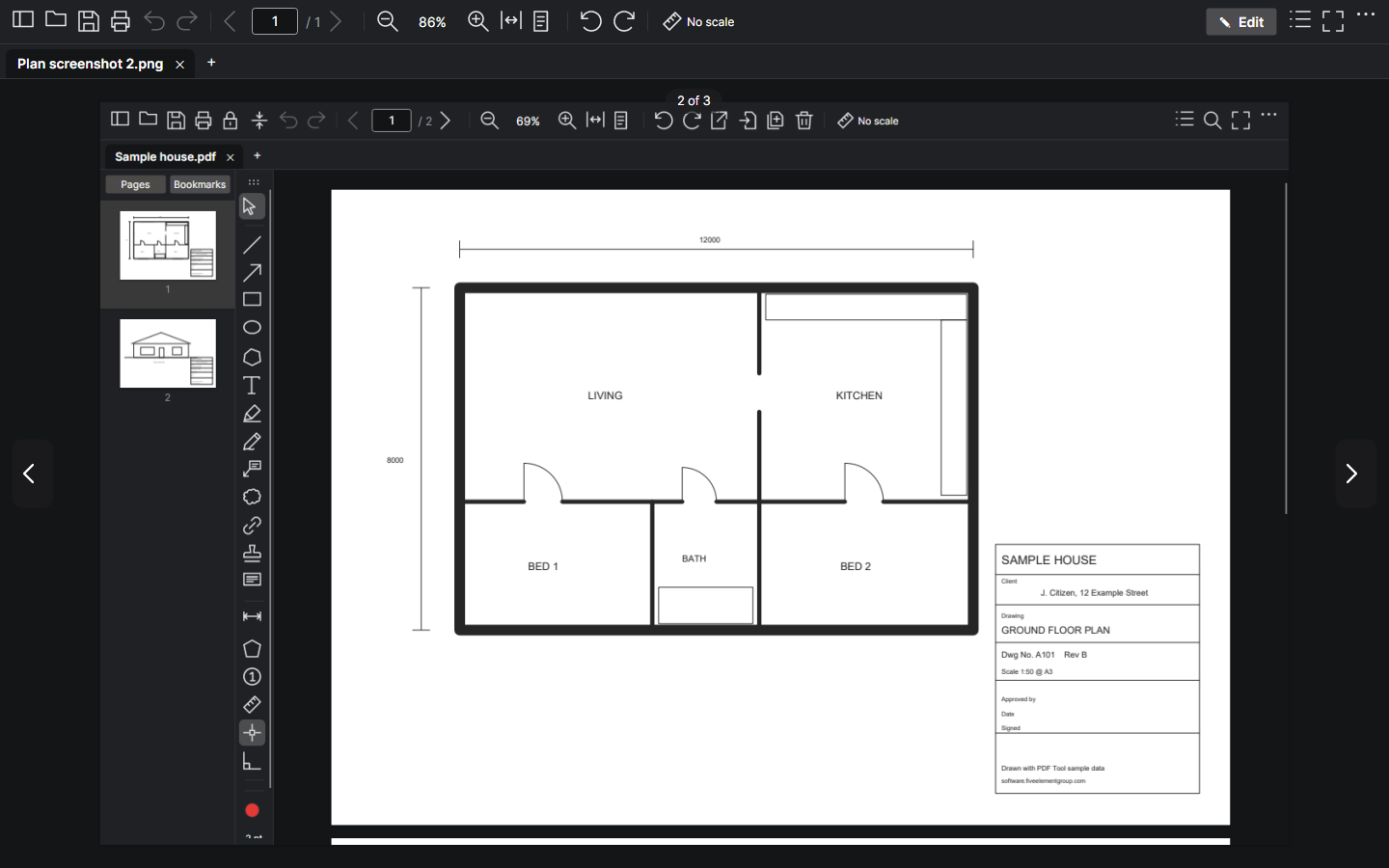
Marking up
Click Edit (Ctrl+E) to bring out the tools; Done puts them away again. A pasted screenshot opens ready to edit. If you move on to another picture with markups you haven't saved, Image Tool asks first.
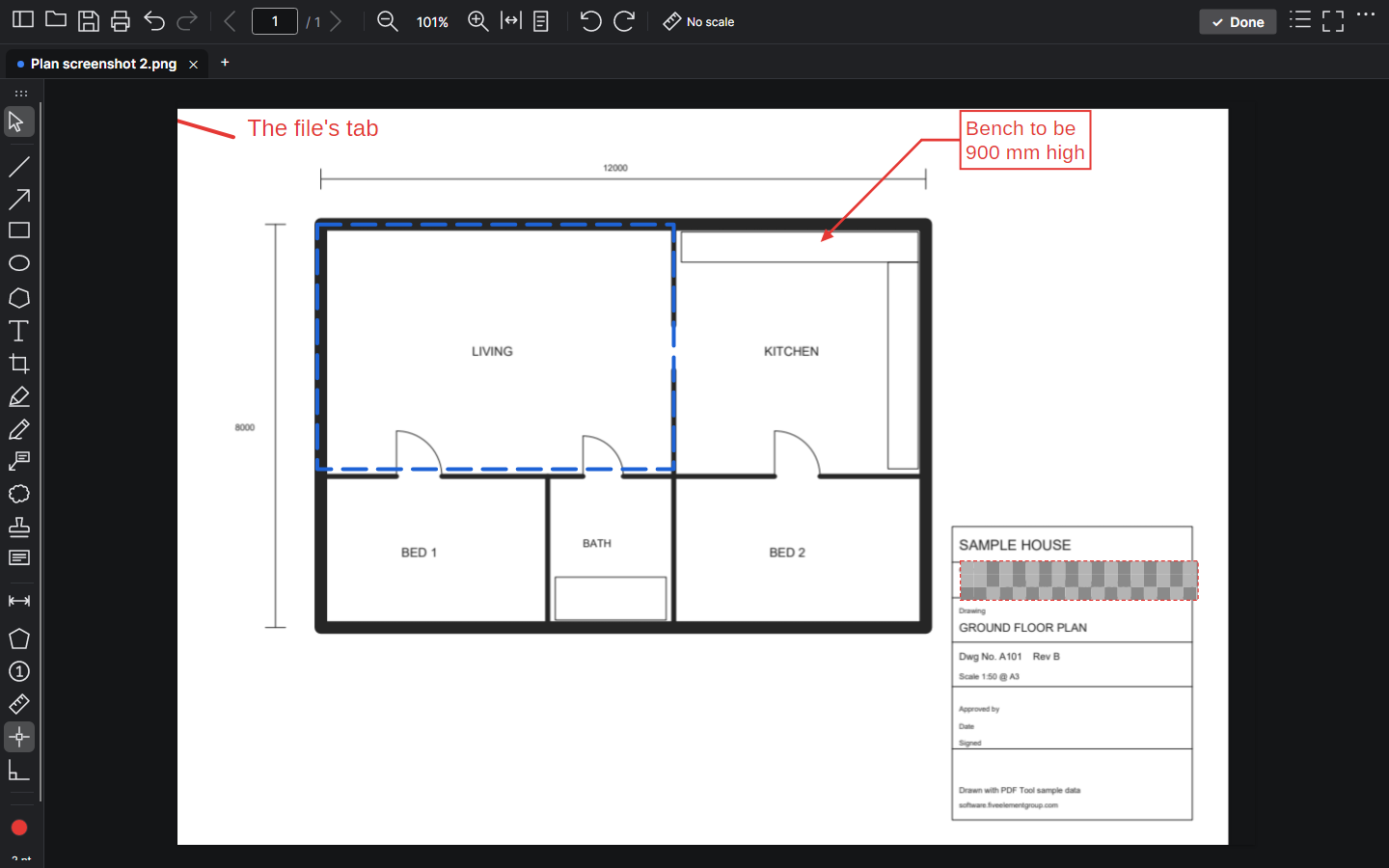
Image Tool has the same markup tools as PDF Tool: arrows, callouts, boxes, text, revision clouds, highlight, free write, stamps and counts. Pick a tool and draw; it goes back to Select so you can adjust what you drew.
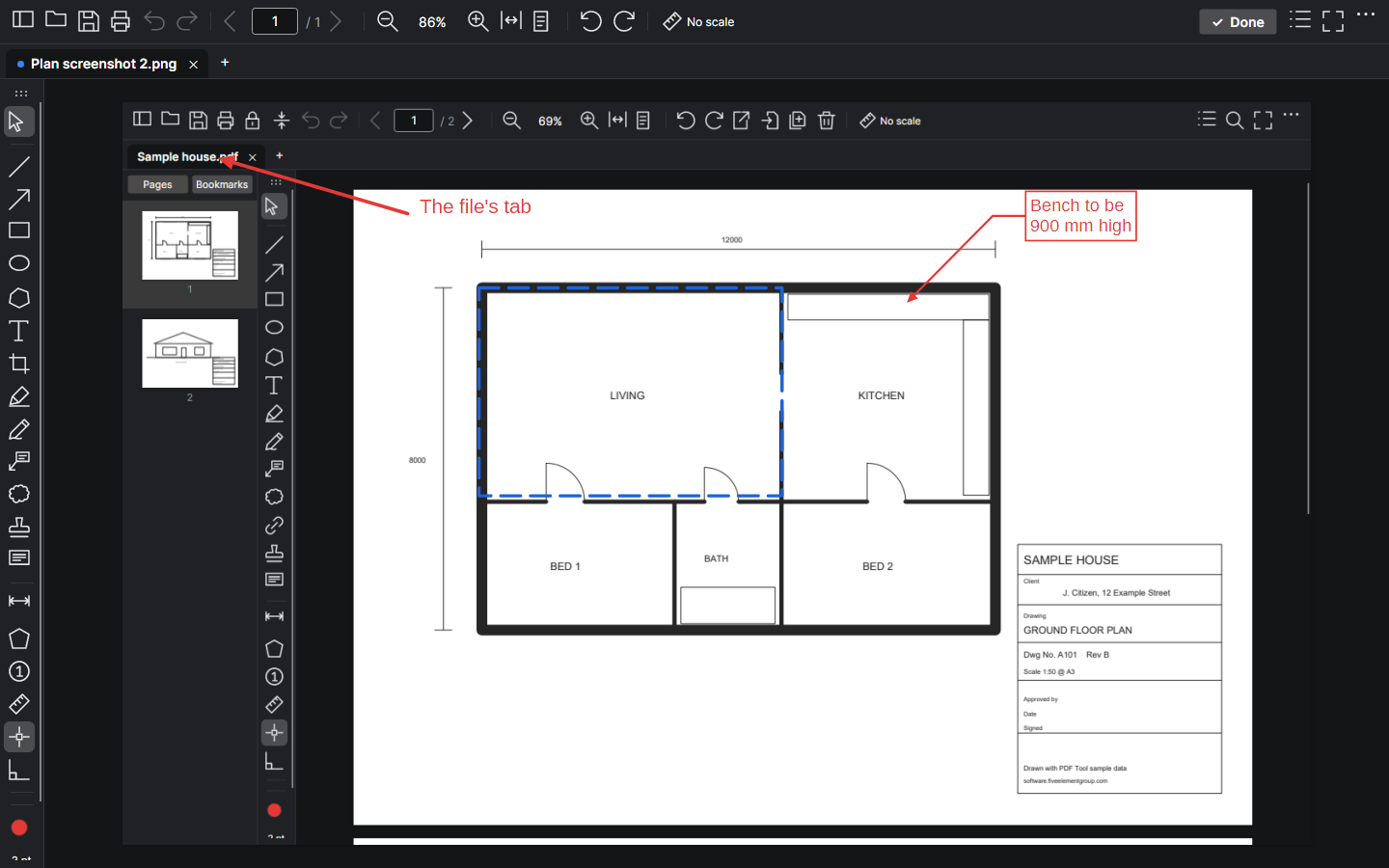
- Arrow (A): drag for one arrow, or click point by point for one that bends.
- Callout (B): press on what it's about, drag to where the comment goes, then type. Drag the dot in the middle of its leader to bend it round something; Ctrl+click a bend to remove it.
- Rectangle (R) and Text (T): pick a colour and weight from the bottom of the tool strip.
- Line types: the weight button's menu has Line type: solid, dashed, dotted, dash dot, dash dot dot, centreline and phantom, each shown as a sample. It changes the selected line, arrow or box, and the next ones you draw. Arrow heads stay solid.
- Right angles only (F8) keeps lines straight across or straight up.
Blurring things out
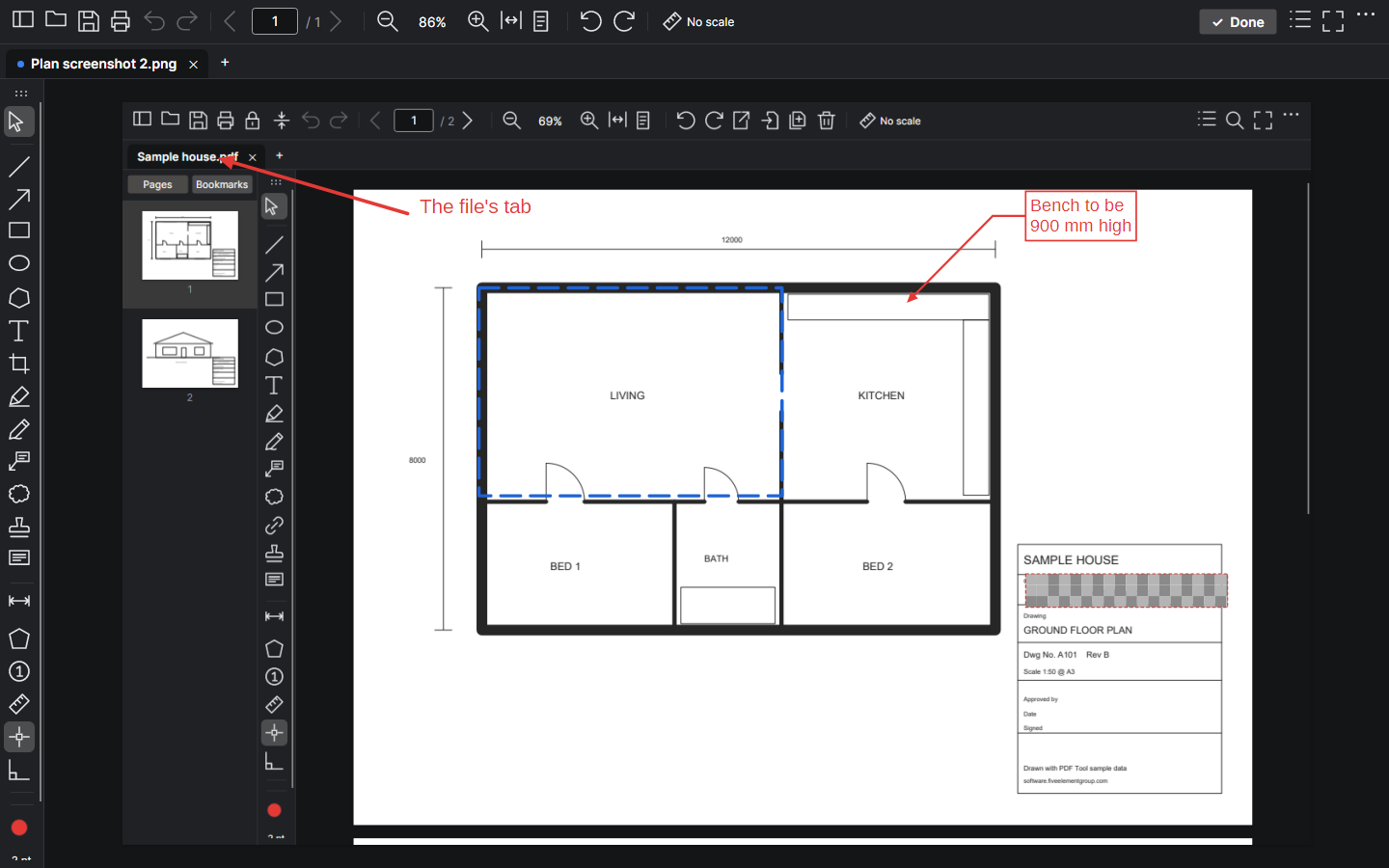
Redact (X) covers a part of the picture with a black box, a white box or a blur (right-click the tool to choose). When you save, the pixels underneath are replaced, so the original can't be recovered from the saved picture.
Cropping
Crop, below the text tool, draws a frame round the part to keep. Drag its corners to adjust it; the bar at the top shows how big the result will be.
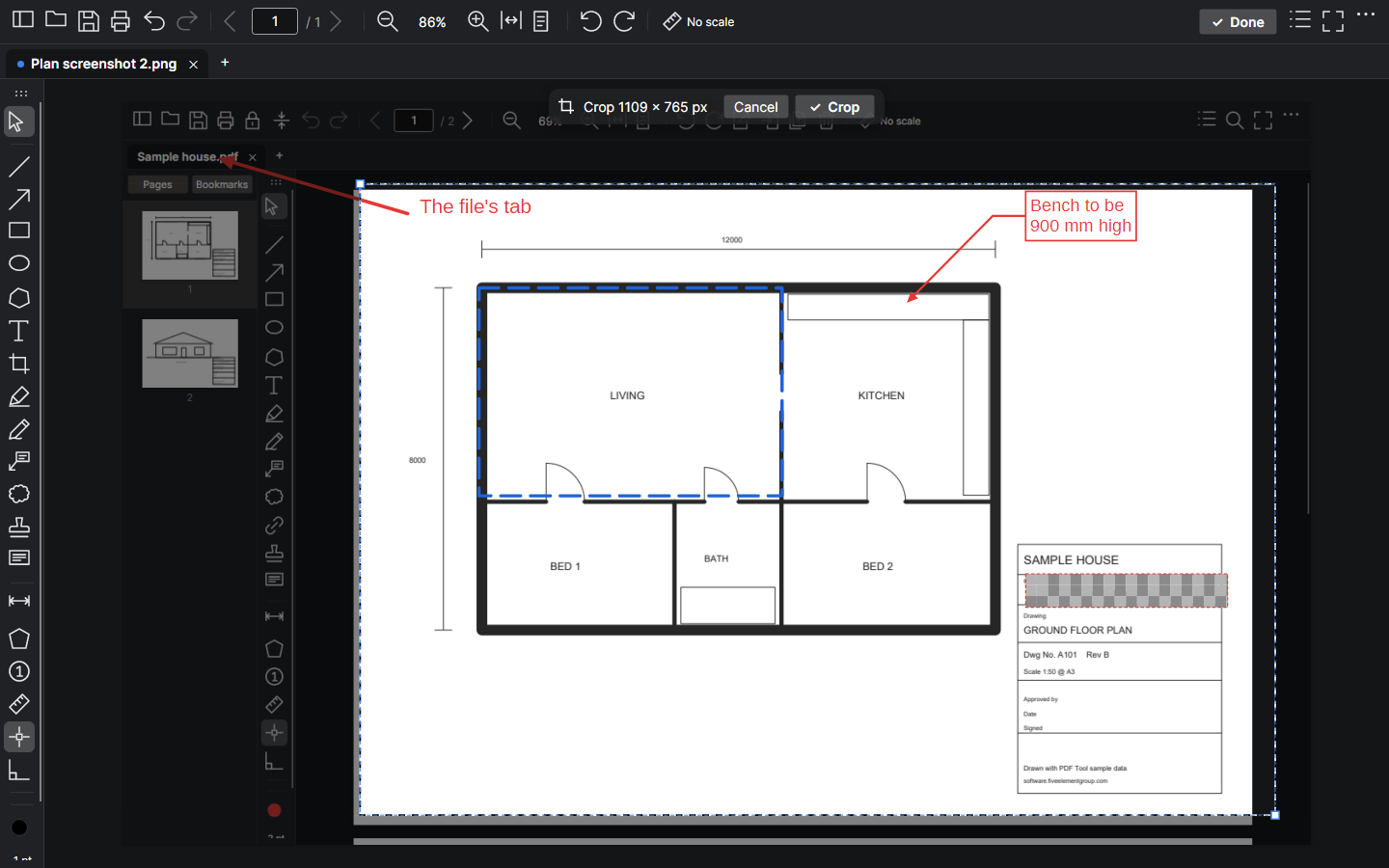
When it's right, click Crop (or press Enter). The picture is cropped there and then and fitted to the window, so what you see is exactly what will be saved. Your markups stay where they were. Cancel (or Esc) takes the frame away instead, and Ctrl+Z after cropping puts the rest of the picture back.
Saving
Save (Ctrl+S) makes a new picture beside the original, named "… (marked up)", so the original is never overwritten unless you choose its name.
- PNG keeps every pixel exactly, including transparency.
- JPEG or WebP are smaller; choose the quality.
- Save at full size, or at 75%, 50% or 25% for email.
- Or save as a PDF, which keeps the markups editable: reopen it in Image Tool to carry on.
Printing
Print (Ctrl+P) has the same print window as PDF Tool, with a preview of each sheet. Sides prints two-sided (flip on the long or the short edge) on a printer that can print both sides.
Measuring
Measuring works on pictures too. Calibrate (K) from something of known length in the picture, then measure distances (D) and areas (M). Scans that record their resolution, such as 300 dpi, measure at true paper size, so a drawing scale like 1:100 works on them straight away.
Staying up to date
Once a week Image Tool checks this website for a newer version. If there is one, it asks whether to open the download page; installing the new version over the old keeps your settings. ⋯ › Check for updates now checks straight away, and ⋯ › Check for updates weekly turns it off.
What it does
What Image Tool does
Opening
- PNG, JPEG, WebP, BMP, GIF, TIFF (every page) and HEIC/HEIF (iPhone photos; a decoder is included on Windows, macOS reads them itself).
- Double-click (when chosen as the app, or under Open with), drag onto the window, File › Open, or Ctrl+V to paste a screenshot (Win+Shift+S on Windows, Cmd+Ctrl+Shift+4 on a Mac).
- Phone photos come in the right way up. Several pictures open as tabs in one window.
Viewing
- Pictures open for viewing, fitted to the window: ‹ › or the arrow keys go to the previous and next picture in the folder, in Explorer's order. Edit (Ctrl+E) brings out the tools, Done puts them away.
Marking up
- Every PDF Tool markup: lines and polylines, arrows (one or two heads, five end styles), rectangles, ellipses, polygons, text, callouts with landings, revision clouds, highlight, free write (pen pressure), stamps (images, text, or a page of a PDF), counts, and right angles only (F8).
- Line types for lines, arrows, rectangles, ellipses and polygons: solid, dashed, dotted, dash dot, dash dot dot, centreline and phantom (line weight menu › Line type).
- Redact: black, white or blurred boxes that replace the pixels underneath when the picture is saved.
- Crop: drag a frame around the part to keep, adjust its corners, then Crop (Enter) to crop it there and then; Cancel (Esc) to leave it. Ctrl+Z uncrops.
- Callout and cloud leaders can bend round things (drag the dot mid-leader).
Measuring
- Calibrate from a known length (K), then distances along paths and areas with names, as in PDF Tool. Scans that record their resolution (e.g. 300 dpi) measure at true paper size, so drawing-scale presets work on them.
Saving
- Save makes a new picture beside the original ("… (marked up)"), so the original is kept unless you choose its name: PNG (exact, keeps transparency), JPEG or WebP (choose the quality), at full size or 75/50/25%.
- Or save as a PDF that keeps the markups editable, and reopen it in Image Tool to carry on.
- Print, with the same print window and preview as PDF Tool, one- or two-sided.
Not in Image Tool
- Forms, bookmarks, links, page editing, combining, locking and text search: they're for PDFs (use PDF Tool).
General
- Checks the website for a newer version once a week and offers to download it (⋯ menu to check now or turn off).
Known limitations
- A PDF saved from Image Tool after cropping still holds the whole picture, with the cropped-away part hidden; a saved picture (PNG, JPEG, WebP) holds only the cropped part.
- Not code-signed yet. Windows SmartScreen and macOS Gatekeeper warn on first install.
- The Mac version hasn't been tried on a Mac yet (PDF Tool's, built the same way, runs on an Intel Mac).
newest first
Changelog
1.1.0 (26/10/2026)
Added
- Two-sided printing (Windows): Sides in the print window, flipping on the long or short edge, for a printer that can print both sides. Remembered for next time.
- Line types: solid, dashed, dotted, dash dot, dash dot dot, centreline and phantom, for lines, arrows, rectangles, ellipses and polygons. Line weight menu › Line type, for new markups and the selected one.
- Viewing and editing, like Windows' Photos app: a picture opened from a file shows on its own, fitted to the window, with ‹ › buttons and the arrow keys (Home and End for the first and last) going through the pictures in its folder in Explorer's order. Edit (Ctrl+E) brings out the tools; Done goes back to viewing. Moving on from a picture with unsaved markups asks to save it first. A pasted screenshot opens ready to edit.
- Cropping you can see: draw the frame, adjust its corners, then Crop (or Enter) crops the picture there and then, fitted to the window, so what you see is exactly what will be saved, print preview included. Cancel (or Esc) takes the frame away. Ctrl+Z puts the rest of the picture back. The crop bar at the top shows the size in pixels. Markups stay where they were on the picture.
- Bends in callout and cloud-comment leaders: drag the dot in the middle of a leader to bend it round things; drag a bend to move it, Ctrl+click it to remove it.
- Update check: once a week Image Tool asks software.fiveelementgroup.com whether there's a newer version and offers to open its page to download it. ⋯ › Check for updates now, or turn the weekly check off there.
Changed
- After drawing a crop frame, Image Tool goes back to Select with the frame ready to adjust, instead of staying in the crop tool, where the next drag drew a new frame.
1.0.0 (26/10/2026)
- First release.
Support
Something not working, or an idea for it? Tell us here and a real person will write back.
Buy us a coffee
Image Tool is free and stays free. If it has saved you some time, a coffee is a lovely way to say so.