A PDF viewer and editor made for architecture and building work. Callouts, clouds, hatches and stamps; areas and lengths to scale; counts with totals; redaction, forms, combining and printing to scale. Markups are standard PDF annotations, so they open in Acrobat and Bluebeam too.
pictures and all
How-to
Opening drawings
Open a PDF with Open (Ctrl+O), by dropping it on the window, or by double-clicking it once PDF Tool is your PDF app. Several PDFs open as tabs in one window, each with its own edits and undo history.
The thumbnails on the left (F4) move between pages. Drag them to reorder pages, and select several to rotate, extract or delete them together. Pages / Bookmarks at the top switches to the PDF's bookmarks.
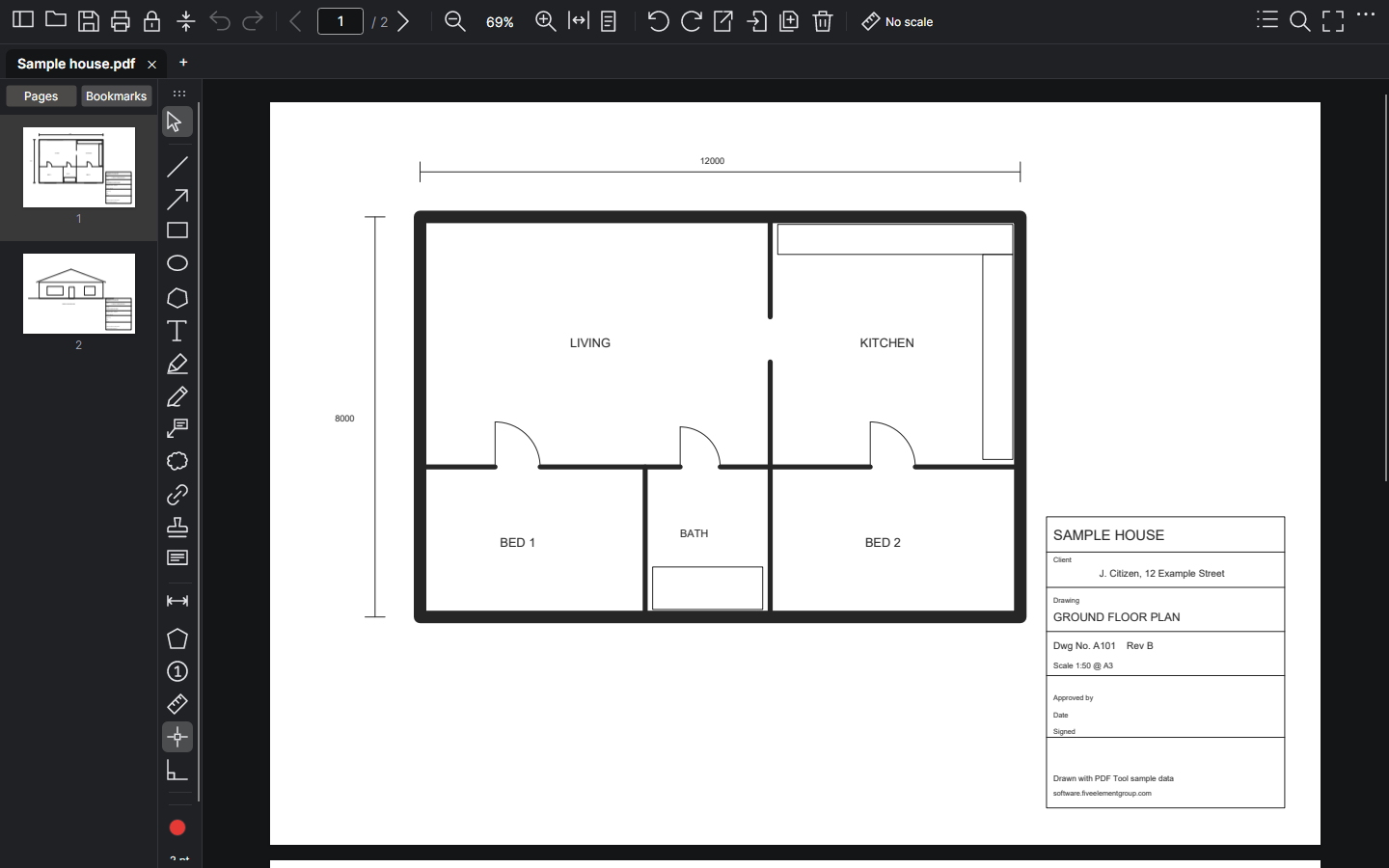
- Zoom with Ctrl + scroll (it zooms where the mouse is), Fit width (Ctrl+2) or Fit page (Ctrl+0).
- F11 is a full-screen reader: one page at a time, arrow keys to turn, Esc to leave.
- Nothing is written to the file until you save. Save as keeps the original.
Marking up
The tool strip holds the markup tools. Pick one, draw, and PDF Tool goes back to Select so you can move or adjust what you drew. Double-click a tool to keep it on for several in a row.
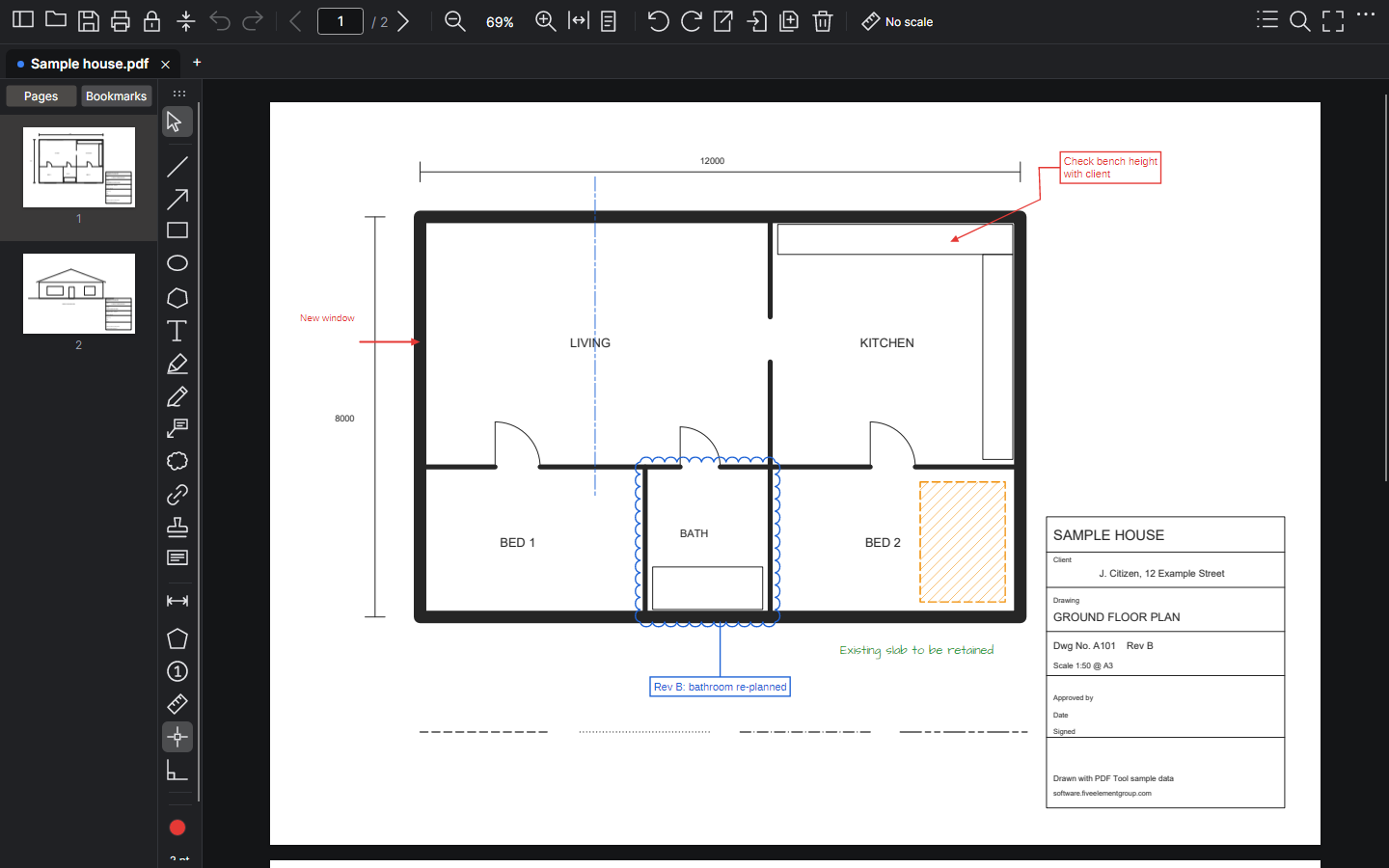
- Line (L) and Arrow (A): drag for one line, or click point by point for a polyline (double-click to finish). Right-click the arrow tool for double-headed arrows.
- Line types: like CAD linetypes. The line weight button's menu has Line type: solid, dashed, dotted, dash dot, dash dot dot, centreline and phantom, each shown as a sample. It changes the selected line, arrow, rectangle, ellipse, polygon or area, and the next ones you draw. Dashes lengthen on heavier lines so the pattern still reads, and arrow heads stay solid. Above: a dashed box, a centreline, and dashed, dotted, dash dot and phantom lines under the plan.
- Callout (B): press on what it's about, drag to where the comment goes, then type. To take the leader round something, select the callout and drag the dot in the middle of its leader: that adds a bend. Drag a bend to move it, Ctrl+click it to remove it. Cloud comments' leaders bend the same way.
- Revision cloud (C): drag a rectangle or click its corners, then add an optional comment.
- Rectangle (R), Ellipse (E), Polygon (P): fill or hatch them from the fill button.
- Text (T): three fonts, Standard, Handwriting and Impact, any size.
- Right angles only (F8) keeps lines and corners horizontal or vertical, like ortho in CAD. Snap (F3) catches line ends, midpoints and intersections; hold Alt to pause it.
Markups are saved as standard PDF annotations, so they show in Acrobat, Bluebeam and browsers, and reopen editable in PDF Tool.
Stamping a whole set: place a stamp (S) once, right-click it and choose Copy to every page. It goes on every page in the same place. If the sheets are different sizes, choose which corner it keeps its distance from (a title-block stamp: bottom-right). Text, boxes, clouds and signatures can be copied the same way, and one Ctrl+Z takes all the copies away.
Measuring
Set the page's scale with the scale button at the top (1:1 to 1:2000), or Calibrate (K): draw over a dimension you know and type its length. Scales from CAD exports are picked up by themselves.
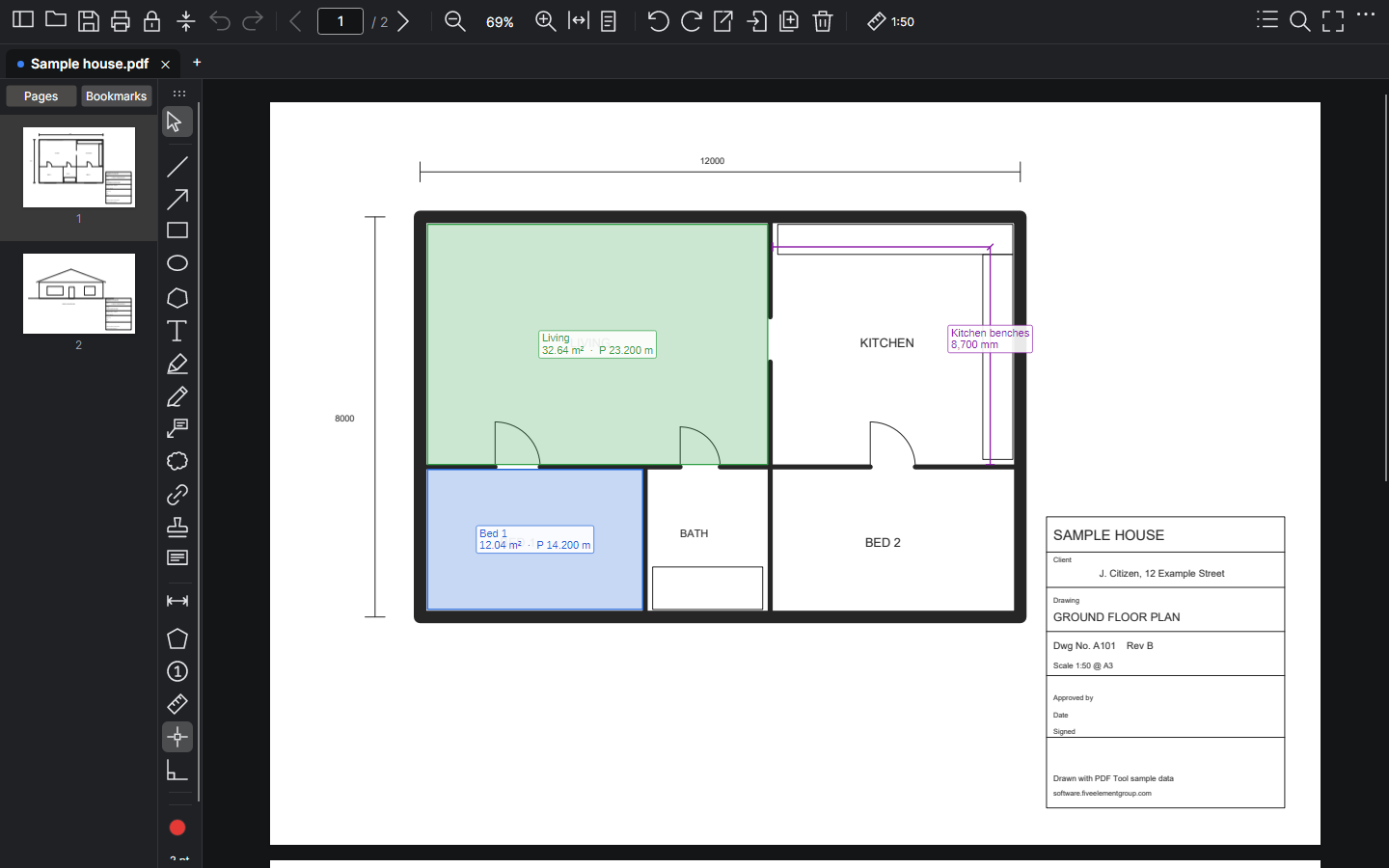
- Measure distance (D): drag for a straight line, or click along a path for its total length.
- Measure area (M): click each corner and double-click to finish. Type a name such as Living, or press Enter to skip it. The area shows in m² with its perimeter.
- Double-click any area or distance to rename it.
Counting
Count (N) drops numbered markers. Double-click one to name what's counted, such as Downlight. Another colour starts a new count.
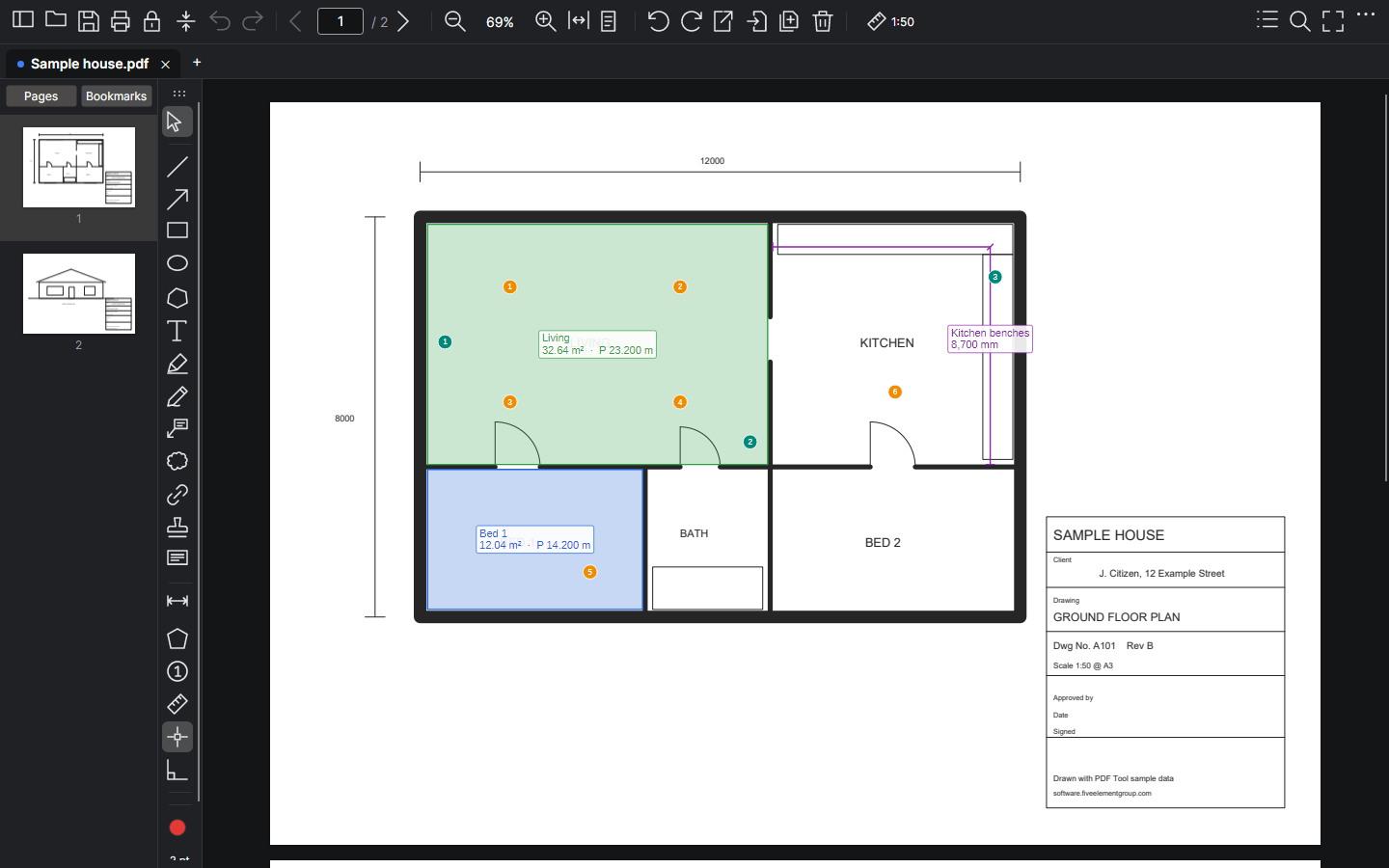
The markups list
F6 lists every markup in the document, with a search box and filters by type and status. It totals the areas, distances and counts, with subtotals by name, and Export saves the lot as a CSV for a spreadsheet.
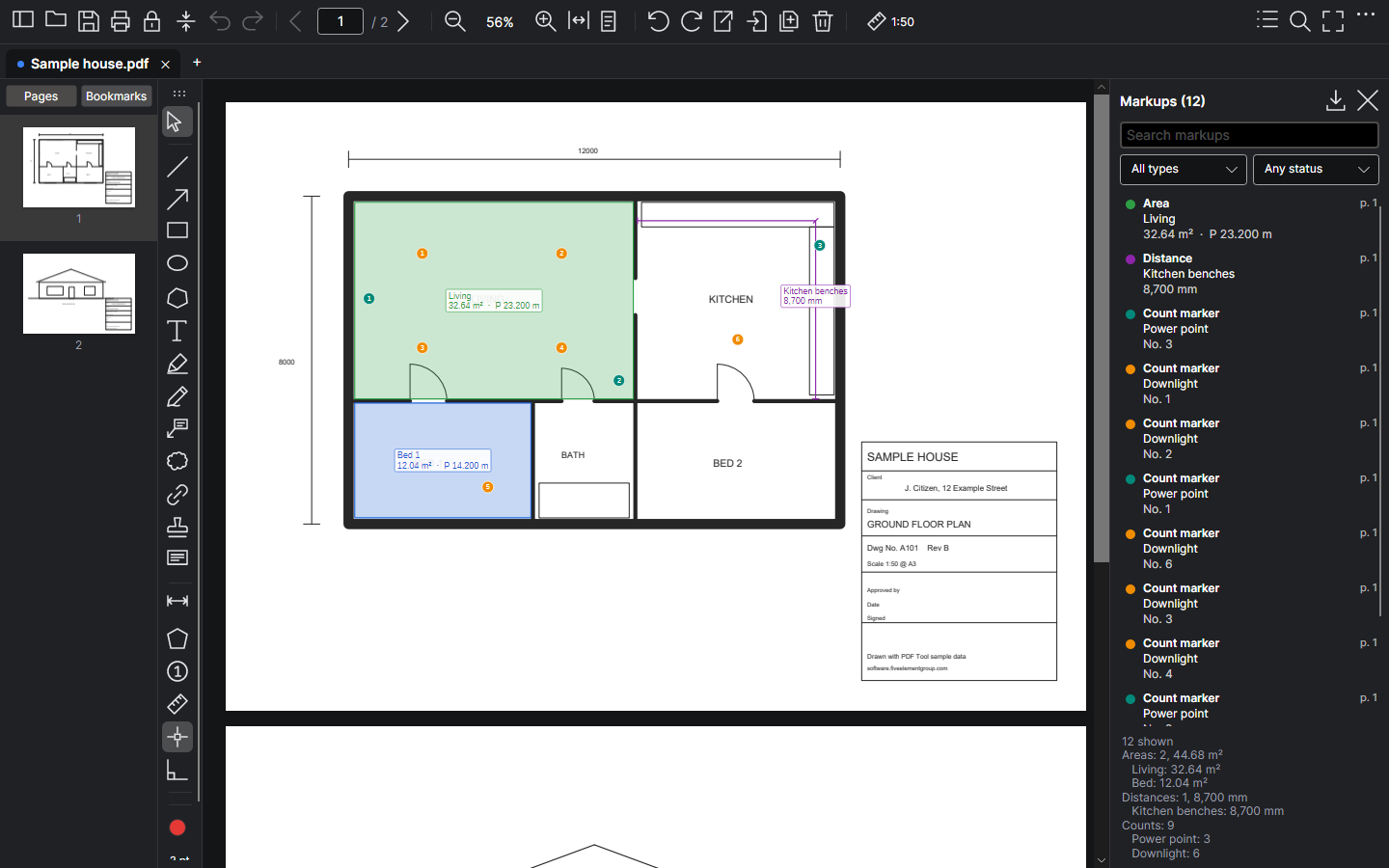
Right-click any markup to give it a status (Open, Done, Rejected) for a review round.
Free write, highlight and redact
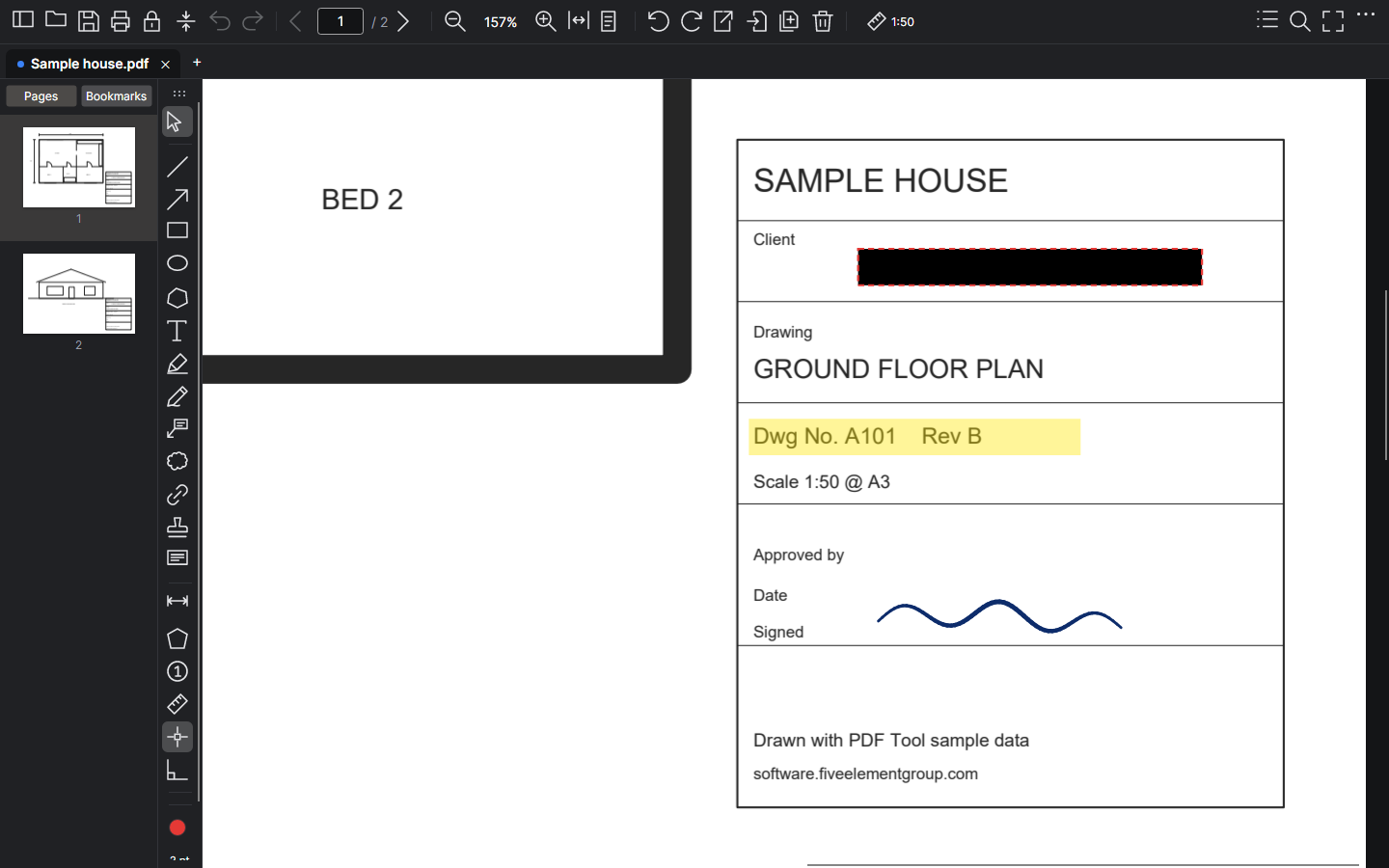
- Free write (F): write or sketch freehand. A pen's pressure sets the line weight and its eraser end rubs out strokes; a mouse or trackpad works too.
- Highlight (I): drag over text to highlight it line by line, or over a drawing to highlight an area.
- Redact (X): drag a box over anything to remove it for good, under black, white or a blur. It's applied when you save, and what was underneath is gone from the file, not just covered.
Forms
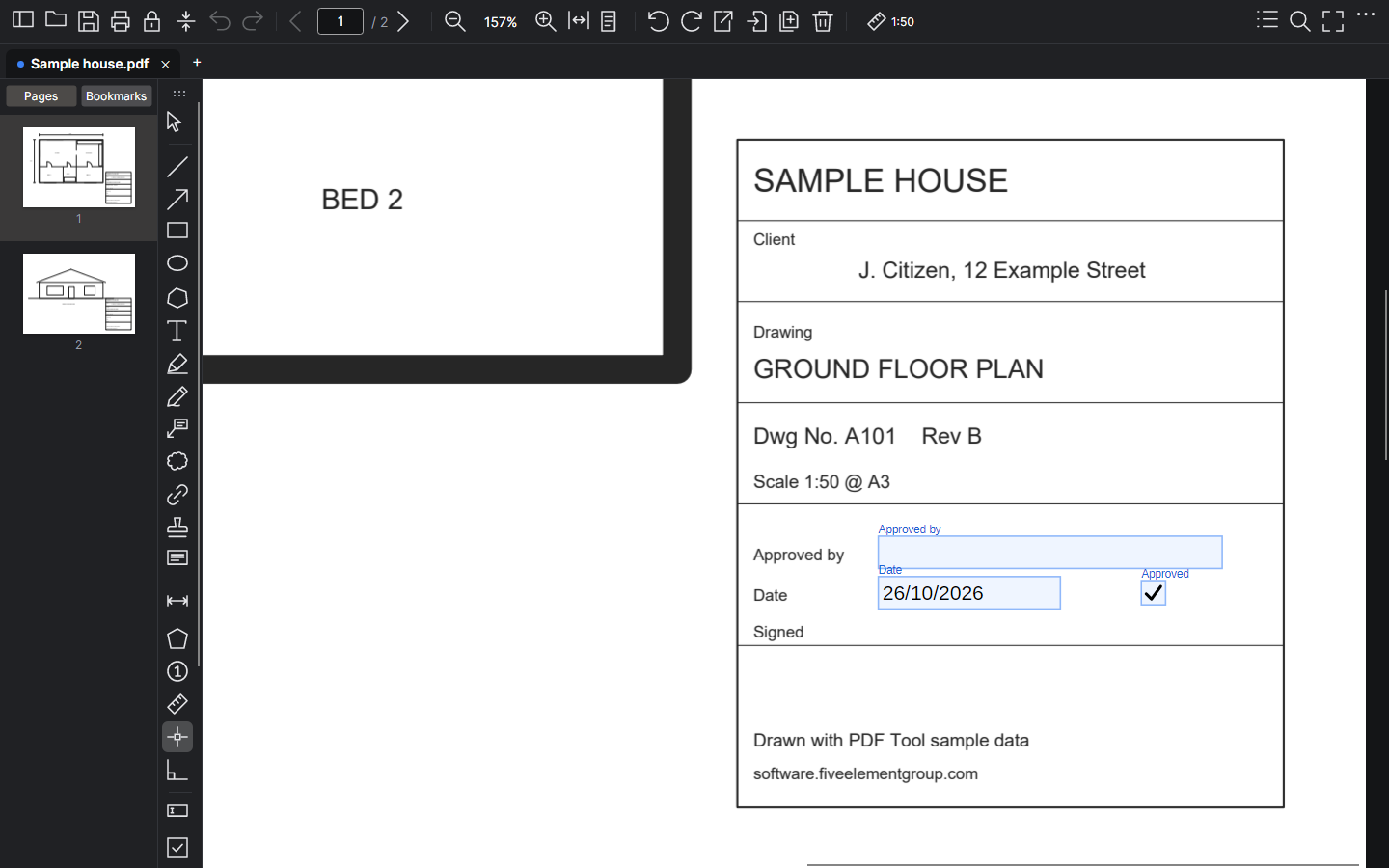
Turn the form tools on from the ⋯ menu, under Form tools. Add text, date, checkbox, option, dropdown and signature fields, and the PDF can be filled in with Acrobat, a browser or a phone.
Filling in someone else's form
Forms made in other programs, such as a council permit application or an IP Australia form, fill in too. Click a field to type into it, tick it, or choose from its list, then save. The answers go into the form's own fields, so whoever you send it to sees them in Acrobat, a browser or a phone.
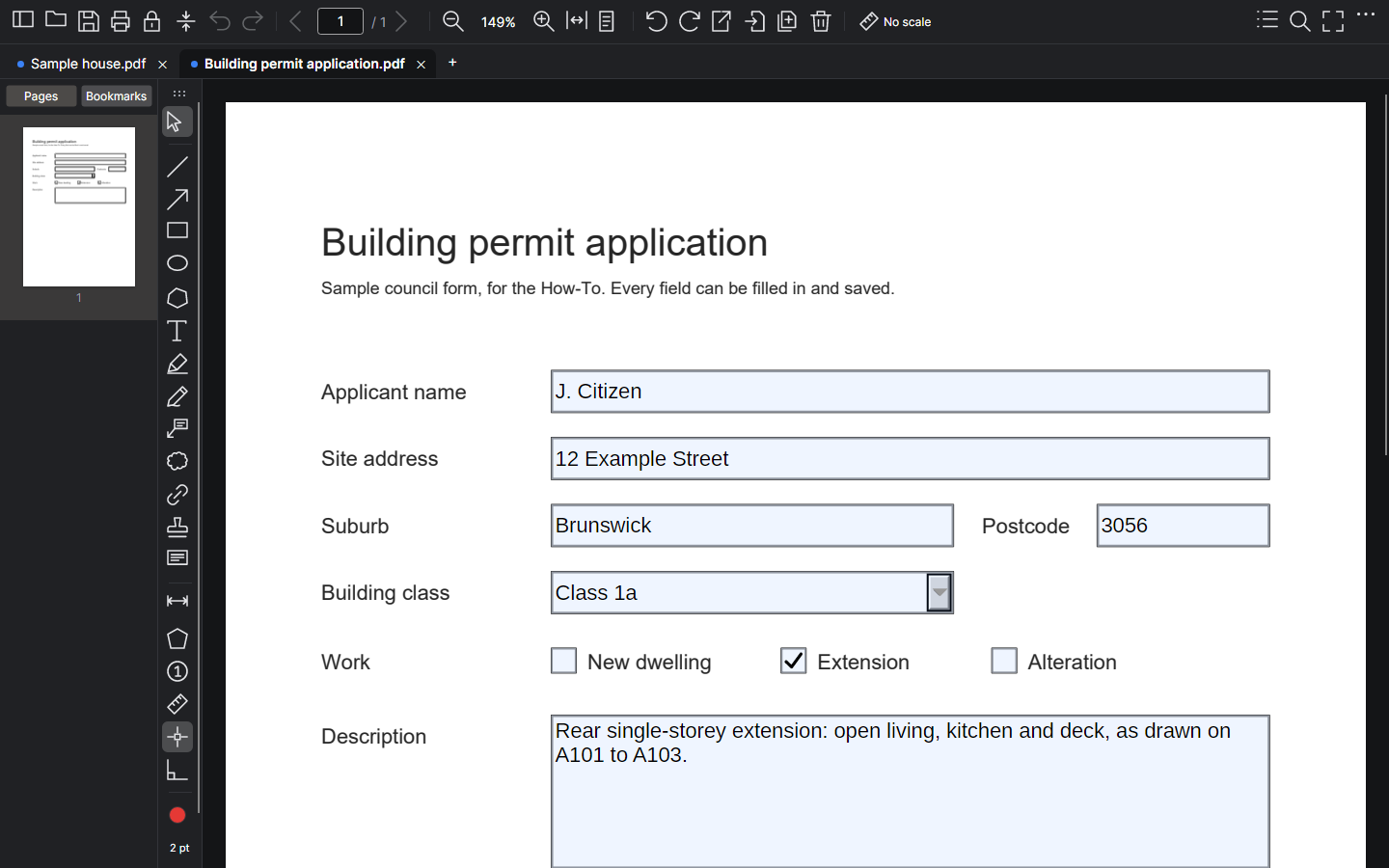
- The form's fields belong to it, so they can't be moved or deleted, only filled in or cleared.
- A field that shows in more than one place (a name in every page's header) fills in everywhere at once.
- Signature fields are signed in Acrobat or Adobe Reader. A form's own calculations and checks don't run in PDF Tool.
- Some government forms also carry an Adobe-only copy of themselves (XFA). PDF Tool takes it out when saving, because Acrobat would otherwise show that copy, still empty, instead of your answers.
Pages, combining and sending
- Insert (Ctrl+I) adds pages from another PDF; Extract (Ctrl+E) saves the selected pages as a new PDF.
- Combine (Ctrl+Shift+M) joins open tabs and files into one PDF, keeping their bookmarks.
- Lock for sending (Ctrl+Shift+L) saves a flattened copy that can't be edited, with an optional password.
- Compress shrinks photos, renders and scans; linework and text are left alone.
Printing
Print (Ctrl+P) shows each sheet as it will come out of the printer. Choose the printer, the pages, and fit to paper or actual size for printing to scale.
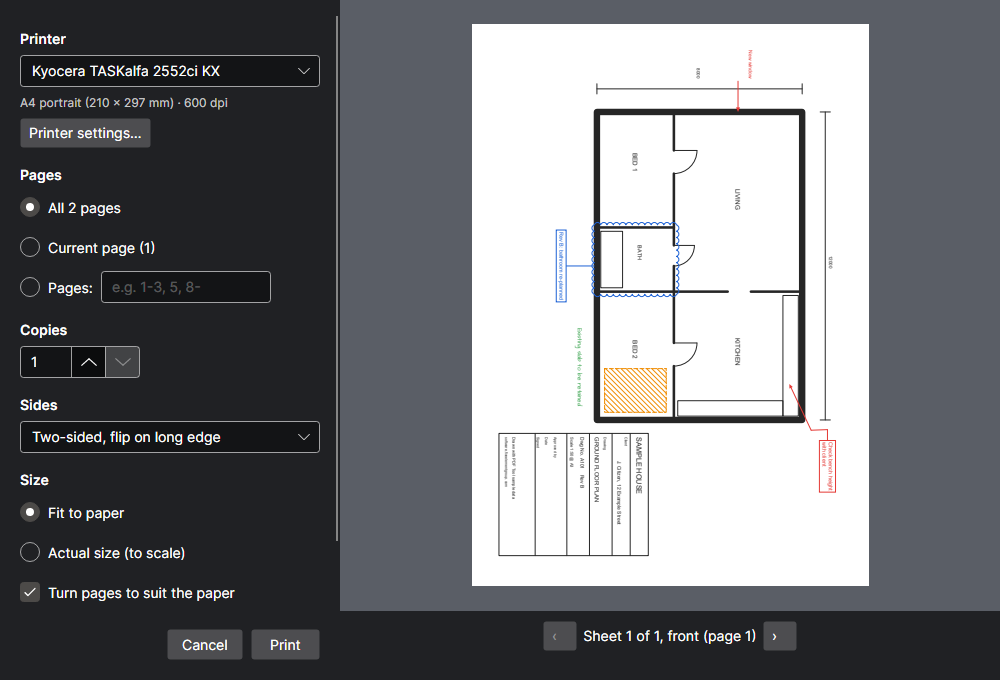
- Sides prints on both sides of the paper: flip on long edge for pages turned like a book, flip on short edge for pages turned up like a notepad. The preview says which sheet, front or back, each page lands on. It's greyed out for a printer that can only print one side, and remembered for next time.
- Printer settings… opens the printer's own options (paper, tray, quality). If you change two-sided there, Sides follows.
- On a Mac, PDF Tool opens the drawing in Preview, whose print dialog has Two-Sided.
Staying up to date
Once a week PDF Tool checks this website for a newer version. If there is one, it asks whether to open the download page; installing the new version over the old keeps your settings. ⋯ › Check for updates now checks straight away, and ⋯ › Check for updates weekly turns it off.
What it does
What PDF Tool does
Viewing
- Opens PDFs (including password-protected ones) by Open, drag-and-drop, "Open with", or double-click.
- Continuous scrolling with a thumbnail sidebar; jump to a page by typing its number.
- The sidebar also shows the PDF's bookmarks (Pages / Bookmarks at its top); click one to go to its page.
- Zoom from 5% to 1600% (Ctrl/Cmd + scroll zooms at the cursor; trackpad pinch on Mac), fit width, fit page, and 100%.
- Stays sharp at high zoom on large sheets (A1 at 800%) without using gigabytes of memory.
- Full-screen reader: one page at a time on black, arrow keys to turn pages, Esc to leave.
- Follows the computer's light or dark mode.
- Links work: with the Select tool, hovering a link shows where it goes (bottom-left) and clicking follows it, to another page or to a web or email address (plain-text web addresses included).
- Create links (Link tool): a box that goes to another page, a web address or an email, visible or invisible, saved as standard PDF links that work in any viewer.
- Point snapping while drawing and measuring: to line ends, midpoints, intersections and (optionally) the nearest point on a line, and to existing markups. F3 or the Snap button turns it on and off; hold Alt to pause it; right-click the button to choose what it snaps to.
- Link sheet numbers automatically across a drawing set.
- Print, with fit to paper or actual size (to scale), one- or two-sided.
- Tools place one markup then return to Select (double-click a tool to keep it on).
- Select and copy text: with the Select tool, drag over text (double-click a word, triple-click a line, Shift+click to extend), then Ctrl+C or right-click › Copy. Ctrl+A selects the page's text.
- Find text (Ctrl+F): highlights every match in the document and steps through them (Enter / Shift+Enter), zooming in when the text is too small to read. Text hidden by the drawing (clipped or off the page) is ignored.
Page editing
- Delete, extract to a new PDF, move (drag thumbnails) and rotate pages. Works on several selected thumbnails at once.
- Combine several PDFs (open tabs and/or files) into one, in any order, keeping their bookmarks.
- Insert pages from another PDF (all of them, or a list like 1-3, 5) before or after any page.
- Undo and redo for every edit.
- Changes are only written when you save. The first save over the original file asks first. "Save as" keeps the original.
Sending
- Lock for sending: a separate copy with markups flattened, editing and copying blocked (printing and filling in its form allowed), and an optional password to open (AES-256). The working file stays editable.
Compression
- Optional compression on save (Ask / Always / Never) and a Compress button.
- Three levels. Lossless recompresses the file only. Balanced caps images at 200 dpi and JPEG quality 80. Small caps them at 120 dpi and quality 60.
- Linework and text are never touched, so drawings stay crisp. Savings come from photos, renders and scans: a 52.9 MB brochure went to 11.3 MB (Balanced).
Markup
- Line, arrow (one head or two), rectangle, ellipse, polygon, text, callout, revision cloud, highlight and stamps (images, text, or a page of a PDF).
- Polylines: with the line or arrow tool, drag for a single line, or click each point for one through several (double-click or Enter to finish, Backspace removes the last point, Shift holds 45°).
- Markups list (F6, or the list button at the top right): every markup in the document in page order, with a search box and a type filter; click one to go to it. Shows totals for the areas and distances listed (with subtotals by name), filters by status, and exports to CSV (page, type, text or name, m², lengths, scale, status, and a summary by name) for a spreadsheet.
- Count tool: numbered markers per series (colour and name), with totals in the markups list.
- Corner editing for polylines, polygons, areas and clouds: drag a corner, drag a mid-edge dot to add one, Ctrl+click a corner to remove it.
- Status (Open, Done, Rejected) on any markup, set by right-clicking it.
- Arrow ends (arrow, open arrow, dot, tick, none) for arrows, callouts and cloud leaders, and an adjustable landing where a callout's leader meets its box.
- Free write: freehand ink that follows a pen's pressure; the pen's eraser rubs out strokes.
- Redact: remove text, pictures and drawing for good under black, white or blurred boxes, applied when saved.
- Form tools (optional, ⋯ › Form tools): make fillable forms with text, checkbox, option, dropdown, date and signature fields; fill in PDF Tool's forms by clicking their fields.
- Fill in forms made in other programs (Acrobat, Word, government and council forms): click a field to type, tick or choose. Saving writes the answers into the form's own fields, so they show in every viewer.
- Callouts: an arrow pointing at something, with a typed comment in a box. Drag the box or the arrow tip separately, and drag the dot mid-leader to bend the leader round things (clouds' comments too).
- Revision clouds: drag a rectangle or click the corners, then type an optional comment (shown in a box with a leader line, and listed as the annotation's comment in Acrobat/Bluebeam).
- Stamps: a saved stamp library (images, or text stamps such as APPROVED with today's date added when placed), plus one-off images that aren't saved. PNG transparency is kept. Right-click one › Copy to every page to stamp a whole set in the same place.
- Colour (12 preset colours, a custom colour picker, and the last 8 custom colours), line weight, text size (6 to 72 pt, or any size) and font for each markup.
- Line types for lines, arrows, rectangles, ellipses, polygons and areas: solid, dashed, dotted, dash dot, dash dot dot, centreline and phantom (line weight menu › Line type).
- Three fonts for text, callouts and cloud comments: Standard, Handwriting and Impact. All three ship inside the app, and Handwriting and Impact are embedded in PDFs that use them, so they look the same in any viewer.
- Fills and hatches for rectangles, ellipses, polygons and areas: tinted solid, diagonal, back-diagonal, cross-hatch, horizontal, vertical and grid, with fine, medium or coarse spacing.
- Select, move, resize, edit text (double-click) and delete markups.
- Saved as standard PDF annotations, so they show in Acrobat, Bluebeam, browsers and print. They reopen as editable markups in PDF Tool.
Measuring
- Set each page's scale from presets (1:1 to 1:2000, for PDFs at true paper size) or by calibrating: draw over a known dimension and type its length.
- Picks up scales already embedded in CAD exports, and saves scales the standard PDF way so Acrobat and Bluebeam can read them.
- Distance tool (mm or m) and area tool (m², with perimeter). Measurements update if the scale changes.
- Distances along a path: click each point (drag for a straight one); the total is shown, with a tick at each corner.
- Name areas and distances (e.g. "Living", "Wall W1"): an area asks for a name when it's finished (Enter or Esc skips; can be turned off in the ⋯ menu), and double-clicking any area or distance names or renames it. The name shows above the value, and in the markups list and CSV.
- Without a scale, measurements show paper size, marked "(paper)".
General
- Tabs: several PDFs open at once, each keeping its own edits, undo history and view. PDFs opened from Explorer join the open window as tabs (Windows; can be turned off).
- The tool strip docks to any edge of the page area, and the main toolbar to the top or bottom.
- Tools you don't use can be hidden from the tool strip (right-click it › Show tools).
- On Windows, File Explorer shows page previews of PDFs (with markups) from PDF Tool's own preview handler, so no other PDF software is needed.
- Hover tips show what each button does and its keyboard shortcut (Ctrl on Windows, ⌘ on Mac).
- Confirmation for deleting pages, with "Don't show this again". Can be turned back on in the ⋯ menu.
- Every change shows a short confirmation message; failures say what went wrong.
- Checks the website for a newer version once a week and offers to download it (⋯ menu to check now or turn off).
Known limitations
- Text markups support Western European characters only (accents, curly quotes, dashes and € are fine).
- Sidebar thumbnails don't show markups.
- Sheets with several viewports at different scales use the main viewport's scale; calibrate for details drawn at another scale.
- Not code-signed yet. Windows SmartScreen and macOS Gatekeeper warn on first install (see "Install on Mac.txt" for the Mac steps).
- The Mac version has been tried on an Intel Mac; the Apple Silicon build hasn't been tried on a Mac yet.
- Text can only be selected or found where the PDF has real text: not in scans, or CAD drawings whose text was exported as linework (SHX fonts). Find also searches PDF Tool's own markups (text, comments, names).
- Forms from other programs: signature fields are signed in Acrobat or Adobe Reader; read-only fields, buttons and their scripts (calculations, checks) don't run in PDF Tool. Forms that exist only as XFA (some older LiveCycle forms, which show "Please wait…") can't be filled in. Explorer previews don't show form fields.
- Redaction keeps large linework that crosses a box (borders, hatching), hidden under the box.
newest first
Changelog
2.0.1 (26/10/2026)
Added
- Two-sided printing (Windows): the print window's Sides: one-sided, two-sided flipping on the long edge (turned like a book) or on the short edge (turned up, like a notepad). The preview says which sheet and side each page lands on. Remembered for next time; greyed out for a printer that can only print one side; and kept in step with the printer's own settings dialog if two-sided is changed there. (On a Mac, Preview's print dialog has it.)
- Line types, as in CAD: solid, dashed, dotted, dash dot, dash dot dot, centreline and phantom, for lines, arrows, rectangles, ellipses, polygons and areas. Line weight menu › Line type sets it for new markups and the selected one (each choice shows a sample). Dashes lengthen with heavier lines so the pattern still reads, and arrow heads stay solid. Saved as dashed PDF annotations, so they show the same in Acrobat and Bluebeam.
- Fill in forms made in other programs: an IP Australia, council or Acrobat form now fills in like PDF Tool's own, by clicking its fields: type into text boxes, tick checkboxes, choose options and from dropdowns. The fields can't be moved or deleted (they're the form's). Saving writes the answers into the form's own fields, names and all, so they show in Acrobat, browsers and phones. A government form that also carries an Adobe-only (XFA) copy has that copy taken out when saved, as it would otherwise still show empty in Acrobat.
- Bends in callout and cloud-comment leaders: select one and drag the dot in the middle of its leader to bend it round things; drag a bend to move it, Ctrl+click it to remove it. Right angles only (F8) and Shift work on bends too. They're saved in the PDF and reopen editable (other programs show the leader as drawn).
- Copy to every page: right-click a stamp (or text, a box, a cloud, a signature…) › Copy to every page puts it in the same place on every page in one go. When sheets differ in size, choose which corner (or the centre) the copies keep their distance from; the nearest is offered first. One Ctrl+Z takes them all away.
- Update check: once a week PDF Tool asks software.fiveelementgroup.com whether there's a newer version, and if there is, offers to open its page to download it. Nothing installs by itself. ⋯ › Check for updates now, or turn the weekly check off there.
- Highlight (I): drag over text to highlight it line by line, drag over anything else (a drawing, a scan) to highlight an area, or click a word. Or select text and right-click › Highlight selected text. Highlights have their own colour (highlighter yellow to start) and multiply over the page, so the text stays readable. Saved as standard Highlight annotations; the highlighted words show in the markups list, Find and the CSV.
- A PDF as a stamp: the stamp menu's "Save an image or PDF as a stamp…" and "One-off image or PDF" take a PDF (a logo, signature, north point or scale bar). The page is trimmed to what's drawn on it, kept see-through, and placed at its true size (drawn at up to 300 dpi). For a PDF of several pages, you choose the page.
- Double-headed arrows: right-click the Arrow tool › Double-headed arrow, or line weight menu › Arrow end › Heads at both ends (for new arrows and the selected one). Works with every end style and with polylines.
- Right angles only (F8, or the button beside Snap): lines, arrows, distances, callout arrows and calibration lines go horizontal or vertical, and so does each corner of polylines, polygons, areas and clouds (placing them or dragging them). Hold Shift for 45° steps instead. Like ortho mode in CAD.
- Print window with preview (Windows): the printer and its own settings (paper, tray, quality), pages, copies, fit or actual size, rotation and markups on the left; each sheet as it will come out of the printer on the right, page by page, with a warning when an actual-size page won't fit the printable area. Replaces the options dialog and the Windows print dialog. Remembers the printer. (The Mac still prints through Preview, which has its own preview.)
- Open PDFs in tabs (Windows, on by default): opening several PDFs from Explorer, or opening one while PDF Tool is already open, adds them as tabs to the open window instead of opening new windows, so they're ready to combine. Can be turned off in the ⋯ menu (takes effect next time PDF Tool starts).
2.0.0 (19/10/2026)
Added
- Arrow ends: arrows, callouts and cloud leaders can end in an arrow, open arrow, dot, tick (as on architectural dimensions) or nothing (line weight menu › Arrow end). Saved as the standard PDF line ends, so Acrobat and Bluebeam show the same.
- Landings: a callout's leader (or a cloud comment's) can meet its box with a short horizontal landing, as on a drawing (line weight menu › Landing: none, 6, 12, 24 or 48 pt), or drag the diamond at the knee to set any length. The landing comes off whichever side of the box faces what it points at.
- Free write (F): freehand ink with a pen, mouse or trackpad. With a pen, the line follows its pressure, the eraser end rubs out strokes, and a finger pans rather than draws (so a resting hand doesn't write). The tool stays on until Esc or V. Saved as standard Ink annotations.
- Redact (X): drag a box over anything, or select text and right-click › Redact selected text. Black, white or blurred (pixelated) boxes (right-click the tool to choose). Shown with a red dashed outline until saved; saving asks first, then removes what's under the boxes from the file for good (text, pictures, lettering drawn as lines, comments and form fields), and reopens the saved file so nothing hidden can still be found or copied. Text or pictures crossing a box's edge keep their outside part, as a picture. Applied the same way when printing (even without markups), extracting, combining and locking.
- Form tools (an optional toolset: ⋯ › Form tools, off by default): text, checkbox, option button, dropdown, date and signature fields. Drag a box or click for the usual size; double-click a field for its settings (name, choices, several lines, required, hint). Option buttons placed one after another are one choice. Saved as standard fillable PDF form fields, so the form fills in Acrobat, Adobe Reader, browsers and phones, and the answers can be saved and sent. With the form tools off, click a field in PDF Tool to fill it in; answers given in other programs are read back when the file is reopened.
- The markups list has Form fields and Redactions filters.
Changed
- A locked copy (Lock for sending) can still have its form filled in.
- The tool strip scrolls when there are more tools than fit (mouse wheel, or the thin bar beside it).
Fixed
- Form fields in PDFs from other programs (council forms, applications) showed blank in PDF Tool, and didn't print: PDFium draws fields in a separate pass, which PDF Tool now does, and printing bakes them into the pages.
- The app's copyright notice read "©" (a text-encoding slip).
1.9.0 (15/10/2026)
Added
- Polylines: the line, arrow and distance tools draw through several points when you click instead of drag. Click each point, double-click or Enter to finish, Backspace removes the last point, Esc cancels, Shift holds 45° from the last point. Saved as standard PDF PolyLine annotations (a PolyLineDimension for distances), so they show in Acrobat and Bluebeam. A distance along a path shows its total length.
- Names for areas and distances: type a name when an area is finished, or double-click an area or distance (or a distance's label) to name it. Shown above the value on the page, in the saved PDF and in its comment. "Ask for a name after measuring an area" in the ⋯ menu turns the prompt off.
- Markups list (F6): every markup in page order, searchable (text, names, values, type, page) and filtered by type; click a row to go to the markup and select it (Delete then deletes it). Totals for the areas and distances shown. Export to CSV, ready for a spreadsheet (e.g. an area schedule).
- Find (Ctrl+F) also finds text in markups: text boxes, callout and cloud comments, and measurement names.
- Count tool (N): click to drop numbered markers (1, 2, 3…) on things to count, such as downlights or windows. It stays on until Esc or V. Double-click a marker (or right-click › Name what's counted) to name its series, e.g. "Downlight". Markers of another colour are a separate count. Saved as filled Circle annotations whose comment reads e.g. "Downlight 3", so the numbers show in any viewer.
- Edit corners: select a polyline, polygon, area or cloud, then drag a corner (square handle) to move it, drag a dot in the middle of an edge to add a corner there, or Ctrl+click (⌘-click) a corner to remove it. Shift holds the edge to 45°. Areas re-measure as you drag.
- Status for markups (Open, Done, Rejected): right-click a markup on the page, or in the markups list. The list shows a coloured badge, dims done and rejected ones, filters by status, and says how many are open/done/rejected. Saved with the markup (in PDF Tool's own data; Acrobat and Bluebeam don't see it yet).
- Subtotals by name in the markups list and the CSV: areas, distances and counts with the same name add up, ignoring a separate trailing number ("Bedroom 1" and "Bedroom 2" total as "Bedroom"). The CSV ends with a "Summary by name" table, and has Group, No. (for counts) and Status columns.
- Bookmarks in the sidebar: switch between Pages and Bookmarks at the top. Click a bookmark to go to its page (even after pages have been moved); the arrow opens and closes nested ones.
- Combine keeps bookmarks: if any file has them, each file gets a bookmark (its name, at its first page) with its own bookmarks under it. Extract keeps the bookmarks that lead to extracted pages.
Changed
- Holding Shift while clicking polygon, area and cloud corners now holds the edge to 45° steps.
- Snapping includes the corners and segment midpoints of polylines.
- Polygons no longer show two corner handles that resized them oddly; they get full corner editing instead.
Fixed
- Saving could drop a PDF's bookmarks when the file stores them in a compressed object stream (as some Word and CAD exports do): PDFsharp can't see them there. They're now rebuilt on save from what PDFium reads.
- Finishing a revision cloud by double-clicking its last corner could close its comment box straight away (the click took the keyboard focus back from the box).
1.8.0 (14/10/2026)
Added
- Select text with the Select tool: drag over it (the cursor becomes an I-beam over text), double-click a word, triple-click a line, Shift+click to extend. Drag empty space (or with the middle button anywhere) still pans.
- Copy selected text: Ctrl+C, or right-click › Copy. Ctrl+A (or right-click) selects all the text on the page.
- Find (Ctrl+F, or the magnifier at the top right): highlights every match across the document in yellow, the current one in orange; Enter / Shift+Enter (or Ctrl+G / Ctrl+Shift+G) step through them, Esc closes. Ignores case and line breaks. Results appear while the rest of the document is still being read (about 10 s for a 34-sheet A1 set the first time, instantly after). Selected text is searched for when Find opens.
- Text hidden on the page (a CAD legend clipped to its title-block cell, text off the edge of the sheet) is left out of selecting and finding, so it doesn't highlight empty space.
1.7.0 (07/10/2026)
Added
- Link tool (H): drag a box, then choose a page, web address or email address, and whether the box is visible. Standard PDF links, so they work in Acrobat, Bluebeam, browsers and tablets. In PDF Tool, Ctrl+click (⌘-click) follows a link you made, double-click edits it, and drag moves or resizes it.
- Point snapping (Snap button or F3, on by default; hold Alt to pause): while drawing or measuring, the cursor snaps to line ends (square marker) and midpoints (triangle) in the drawing, and to the ends and corners of markups. The drawing's linework is read once per page in the background, in short bursts so viewing stays smooth (0.2–0.6 s on typical sheets, about 3.5 s on a very dense A0 plan).
- Snap to intersections and to the nearest point on a line or curve: right-click the Snap button to choose ends, midpoints, intersections and nearest point (the first three on by default).
- Print (printer button, Ctrl+P): all, current or chosen pages; fit to paper or actual size (to scale); turn pages to suit the paper; with or without markups. Windows uses the standard print dialog and prints at the printer's resolution; on a Mac the document opens in Preview to print.
- Link sheet numbers automatically (right-click the Link tool): finds each sheet's number in its title block, lets you check them, then links every mention on other sheets (drawing list, section and detail markers) to its sheet. One undoable step.
- One markup, then back to Select (⋯ menu, on by default): after placing a markup the tool returns to Select with it selected. Double-click a tool button to keep that tool on for several in a row.
Fixed
- Combine kept PDF Tool's page links pointing at the wrong pages (and could copy their target pages as strays); they now point at the right pages in the combined file.
- The Windows installer replaces an installed copy with the same version number, instead of installing a second copy beside it (1.7.0 was updated in place).
1.6.0 (07/10/2026)
Added
- Insert pages (toolbar button, Ctrl+I, or right-click a thumbnail › Insert pages before/after): pick a PDF, choose all or some of its pages (e.g. 1-3, 5, 8-), and before or after which page. Undoable. Markups and scales on the inserted pages come with them.
- Links: hover to see where a link goes; click to go to the page or open the web/email address. Only web and email links open, never programs or files.
- Colour picker: "Custom colour…" in the colour menu (spectrum, palette or hex code). The last 8 custom colours are kept in the menu. The preset palette grows from 6 to 12 colours.
- More text sizes (6–72 pt) plus "Other size…" for any size, in the line weight menu.
- Fonts: Standard, Handwriting (Architects Daughter) and Impact (Anton, an open look-alike of Impact, which itself can't be redistributed), in the line weight menu. Fonts are built into the app and embedded in the PDF.
Changed
- Curly quotes, dashes, €, • and other Windows-1252 characters now save correctly (they were "?").
- Text on screen is placed line by line at exactly the saved PDF's positions, in every font.
1.5.0 (07/10/2026)
Added
- PDF Tool's own File Explorer preview handler (
PdfThumbnails.dll, installed by the MSI): page 1 of each PDF, markups included. Works when PDF Tool is the default PDF app, and for any default app that has no previews of its own. Replaces 1.4.0's borrowing of another app's handler, so other PDF software can be uninstalled.
Changed
- On start-up, PDF Tool removes the per-user setting 1.4.0 made to borrow another app's preview handler (it would otherwise hide PDF Tool's own).
1.4.0 (06/10/2026)
Added
- Saved stamps: the stamp button opens a menu of saved stamps. Add any PNG/JPEG, save a stamp already on the page, or make a text stamp (wording, colour, optional date that fills in when placed). "One-off image" places an image without saving it. Saved stamps live in a
stampsfolder besidesettings.json. S places the last saved stamp. - Callout tool (B): press on what it's about, drag to where the comment box goes, type. Saved as a standard FreeText callout annotation.
- Revision cloud tool (C): drag a rectangle, or click each corner and double-click/Enter to finish, then type an optional comment. Saved as a standard cloudy polygon annotation with the comment as its contents. Double-click a callout or cloud to edit its comment.
- Show tools: right-click the tool strip to hide tools you don't use (and bring them back).
Fixed
- Windows: with PDF Tool as the default PDF app, File Explorer showed PDF Tool's logo instead of a page preview. PDF Tool now registers an installed preview handler (e.g. PDF24's) for its own file type, per user, on start-up. A PC with no PDF preview handler at all still shows the logo.
1.3.0 (05/10/2026)
Added
- Lock for sending (padlock button or Ctrl+Shift+L): saves a separate copy to send, with any of: - markups, measurements, stamps and other annotations flattened into the page (links and form fields stay live); - editing, copying and adding comments blocked, printing still allowed; - a password to open, with AES-256 encryption. The working file stays editable. Permission locks are honoured by Acrobat, Bluebeam and browsers but can be removed by determined users; the open password is real encryption.
1.2.0 (05/10/2026)
Added
- Combine PDFs (toolbar button or Ctrl+Shift+M): join open tabs and/or files from the computer into one new PDF, in any order. Open tabs go in as they currently are, unsaved edits, markups and scales included. The result is saved where you choose and opens in a new tab.
1.1.0 (05/10/2026)
Added
- File tabs: open several PDFs at once, each with its own edits, undo history, markups, scales and zoom. A dot marks tabs with unsaved changes. Ctrl+Tab / Ctrl+Shift+Tab to switch, Ctrl+W (⌘W) or middle-click to close. Opening a file that's already open switches to its tab. Open several files at once from the Open dialog or by dropping them on the window.
- Movable toolbars: drag the tool strip's grip to the left, right, top or bottom of the page area (or right-click it to choose). The main toolbar can sit at the top or bottom. Positions are remembered.
PDFTOOL_SETTINGSenvironment variable to use a different settings file (testing, portable copies).
Changed
- Closing the window asks about each tab with unsaved changes.
1.0.0 (05/10/2026)
First release.
Added
- Viewer: thumbnails, zoom, fit width/page, full-screen reader, light and dark mode.
- Page editing: delete, extract, move, rotate; undo/redo; save with overwrite confirmation; save as.
- Compression on save and on demand (Lossless, Balanced, Small).
- Markup: line, arrow, rectangle, ellipse, polygon, text and PNG stamps; colours, line weights, text sizes; fills and hatches.
- Measuring: page scales (presets, calibration, read from the PDF), distance and area tools.
- Windows installer (MSI): Start menu and desktop shortcuts, PDF Tool under "Open with" for PDFs.
- Mac app (zipped
.app, Apple Silicon and Intel), untested.
Support
Something not working, or an idea for it? Tell us here and a real person will write back.
Buy us a coffee
PDF Tool is free and stays free. If it has saved you some time, a coffee is a lovely way to say so.